PCF Studio
After reading this guide, you will be able to:
- Understand what PCF Studio is and how it fits into your workflow
- Know when and why you need a product carbon footprint
- Follow the end-to-end workflow from your bill of materials to shareable PCF
- Review and refine emission factor matches
- Export audit-ready results for customers and regulators
What is PCF Studio?
PCF Studio is our tool for calculating product carbon footprints in minutes instead of months. It guides you through each step: importing a bill of materials, mapping materials to emission factors using our Mapping Agent, and calculating results with a full audit trail. The tool is available through your dashboard and can be enabled through inquiry here .
Built on our PCF API, the tool aligns with the GHG Protocol Product Standard and ISO 14067. It enables sustainability teams and product engineers to generate audit-ready carbon footprints without needing deep LCA expertise. It is easier than traditional LCA tools, cheaper than consultants, and more reliable than spreadsheets.
What is a product carbon footprint?
A Product Carbon Footprint (PCF) measures the total greenhouse gas emissions associated with a product across its lifecycle. The result is expressed in kgCO2e per functional unit (for example, per kilogram of material or per unit produced). PCF Studio calculates cradle-to-gate PCFs by default, covering raw material extraction, upstream transport, and manufacturing.
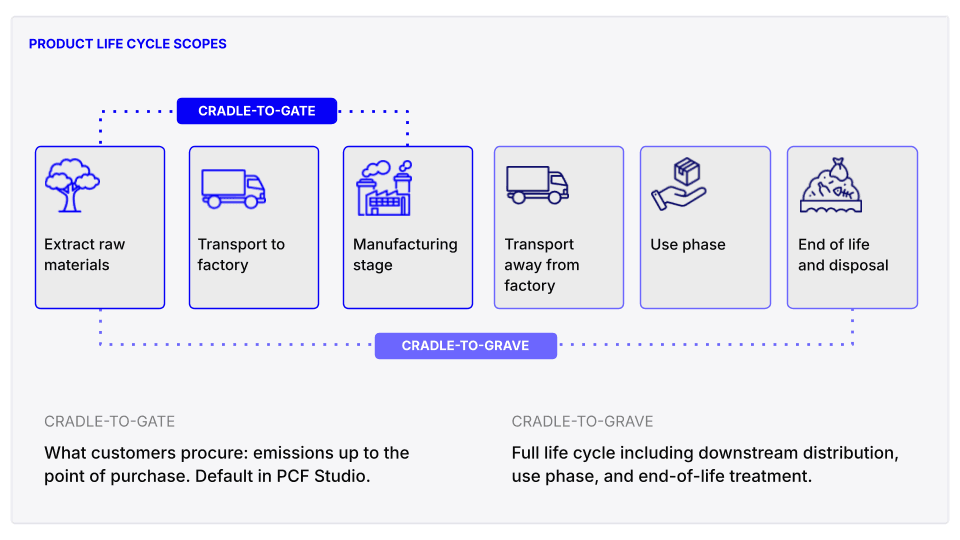
Figure 1: Understanding the ‘scope’ of system boundaries in PCF calculations
For a deeper explanation of PCF concepts, standards, and methodology, see our PCF Methodology Guide.
Workflow in PCF Studio
PCF Studio follows a three-phase workflow: upload your product data, let Mapping Agent match materials to emission factors, and review and share your results.
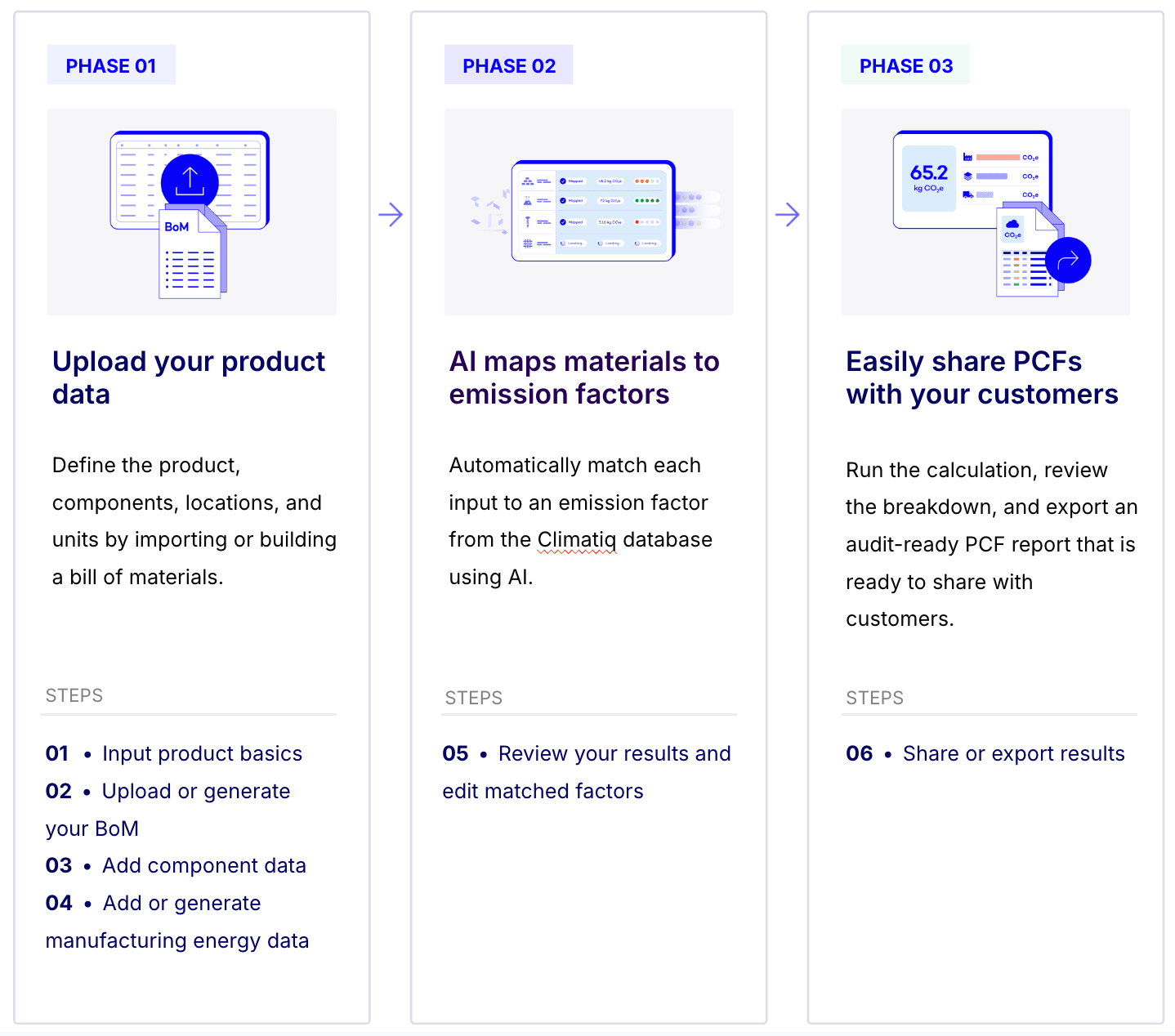
Figure 2: Phased approach for preparing your PCFs in PCF Studio
Phase 1: Upload your product data
Step 1: Input product basics
Start by entering your product name, manufacturing location, and manufacturing year. The product name is used by Mapping Agent and by the fast template feature, so make it as precise and descriptive as possible.
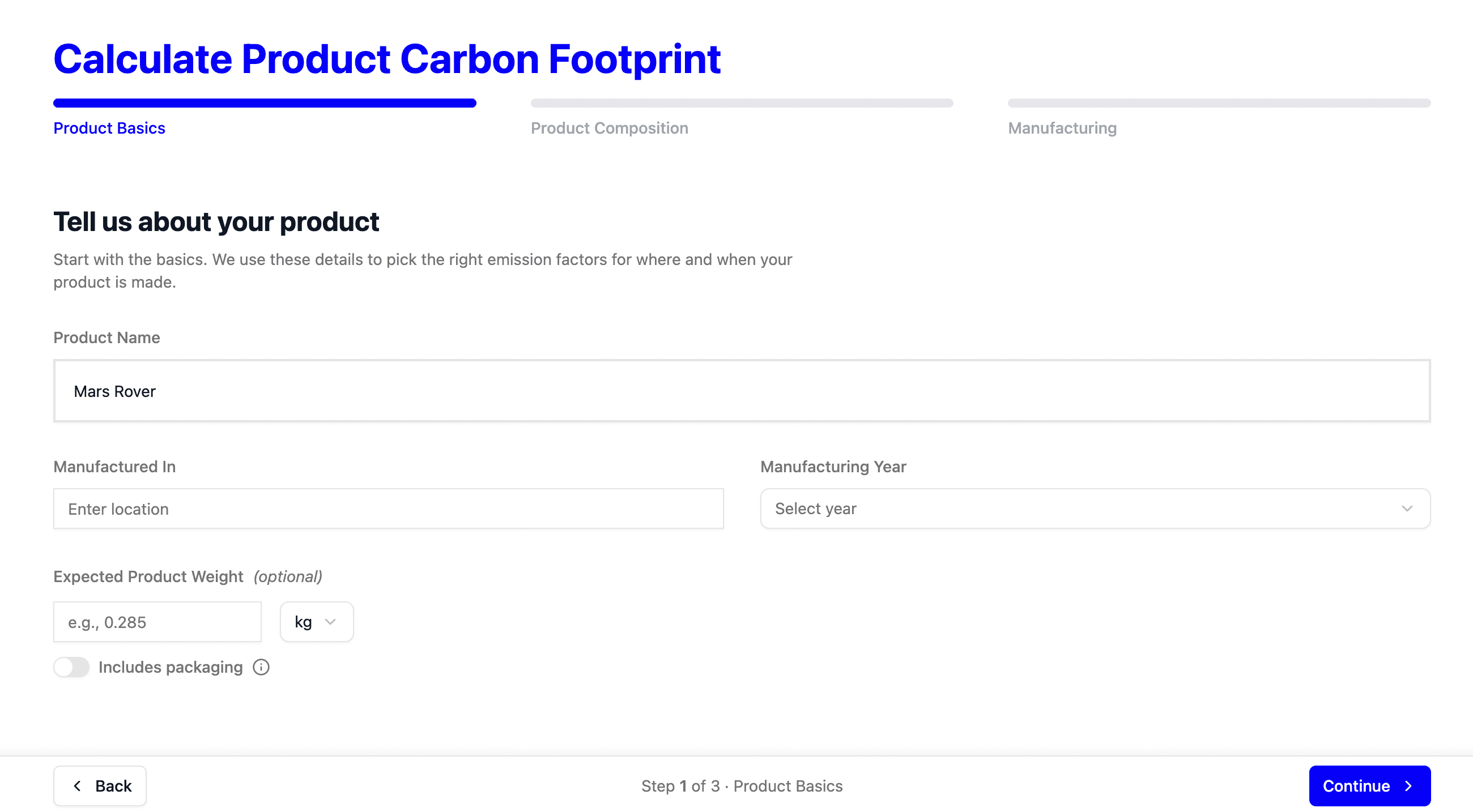
Figure 3: Input of information to start the generation of your PCF
Step 2: Upload or generate your BOM
Your bill of materials is the primary input. PCF Studio offers three ways to provide it:
Generate a template. If you do not have a BOM, click “Start fast with a template” and PCF Studio will use your product name to create a probable list of components. This is especially useful for product ecodesign when you do not yet have a finalized BOM.
Upload your Bill of Materials. Drag and drop a CSV or Excel file containing your BOM. We provide a downloadable template with all the required fields and formatting, so you can fill it in and re-upload.
Enter manually. Add each component one by one directly in the interface.
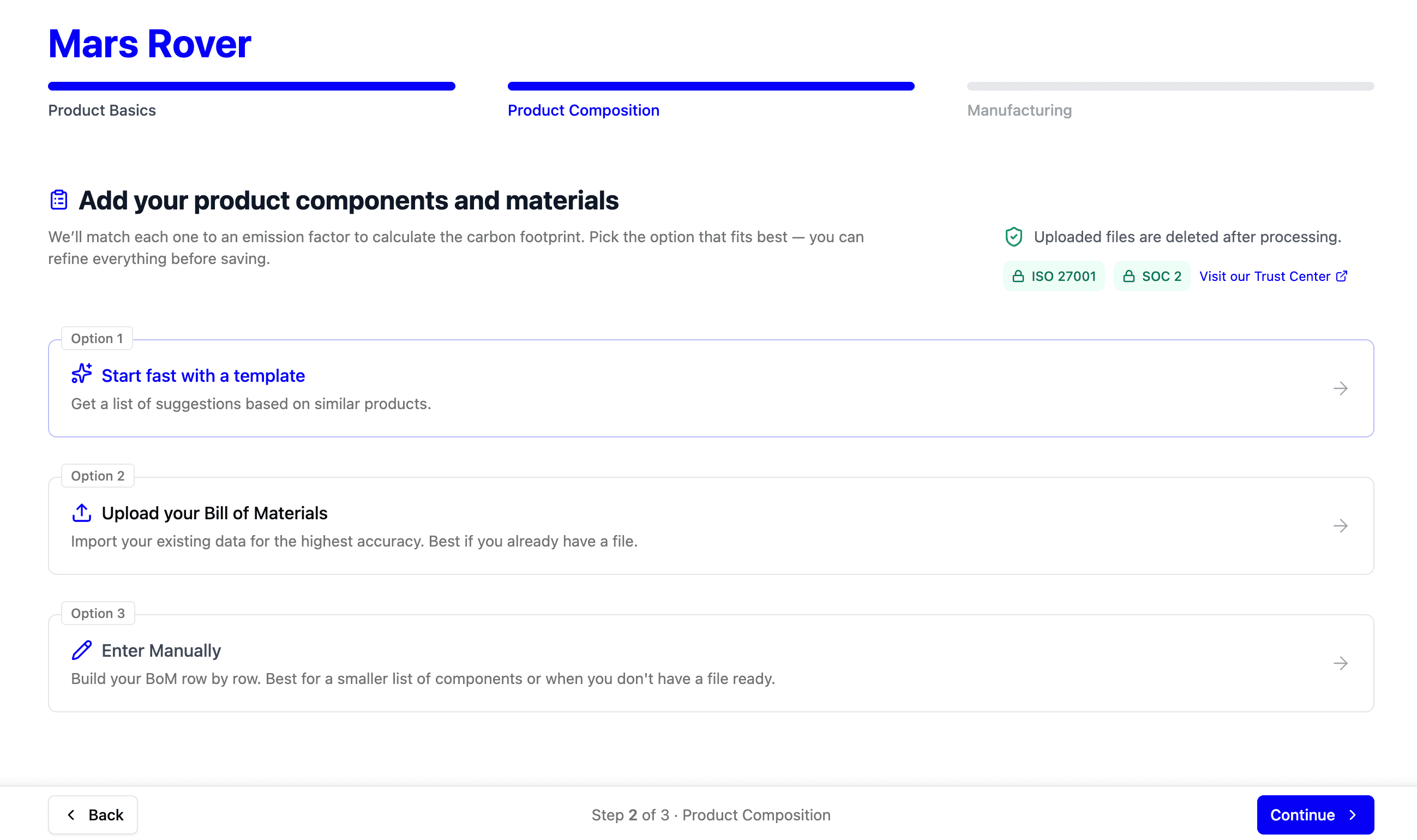
Figure 4: Different ways of adding the bill of materials in PCF Studio: using templates, AI, or manual input
Step 3: Add component data
After uploading or generating your BOM, verify that the data was parsed correctly. If you generated a BOM, take extra care to check each component against what you know about your product.
You will need to add the procurement location of each component and specify the type (component or packaging). The transport mode can be set manually (road, rail, sea, air) or left on “Auto”, in which case PCF Studio calculates transport emissions automatically using our GLEC-compliant freight API.
PCF Studio supports multiple units of measurement (grams, kilograms, tonnes, liters, millimeters, and more) and automatically converts inputs in the background, reducing the risk of manual conversion errors.
Waste percentage is an optional field you can add per component.
Using this component data, the Mapping Agent matches each component and packaging item to an emission factor from our scientifically vetted database, drawing on sources including Ademe, Agribalyse, Circular Ecology, Plastics Europe, and premium databases like ecoinvent and Carbon Minds (if included in your plan).

Figure 5: Each of the components or packaging materials in your BOM will require a clear description (to find the relative emission factor), its weight or a derivative unit type, the transport details and a percentage of waste in its production process
Step 4: Add or generate manufacturing energy data
In the manufacturing step, add the energy consumed during production. You have two options:
Process-level. Enter energy data split across individual manufacturing steps (cutting, molding, assembly, etc.) from process-level records.
Product-level. Enter total electricity, heat, steam, and fuel consumed to manufacture the finished product, from utility bills or annual reports.
For electricity, you can add a custom emission factor if your supplier provides one (click “Optional fields” and enter the value under “Contract Emission Factor”). In the US and UK, you can also enter your supplier name to get supplier-specific factors. For fuel, choose from 200+ fuel types.
If you do not have energy data, PCF Studio can generate an estimate. It uses AI to determine probable manufacturing processes from your product name and weight, then provides an electricity or fuel estimate as a starting point. Estimates are transparent: you get a clear breakdown of the assumptions made, and all values are editable. A 2x safety multiplier is applied to reduce the risk of underestimation.
Energy calculations are handled by our ISO-certified Energy API. PCF Studio applies the correct emission factors for your manufacturing location automatically.
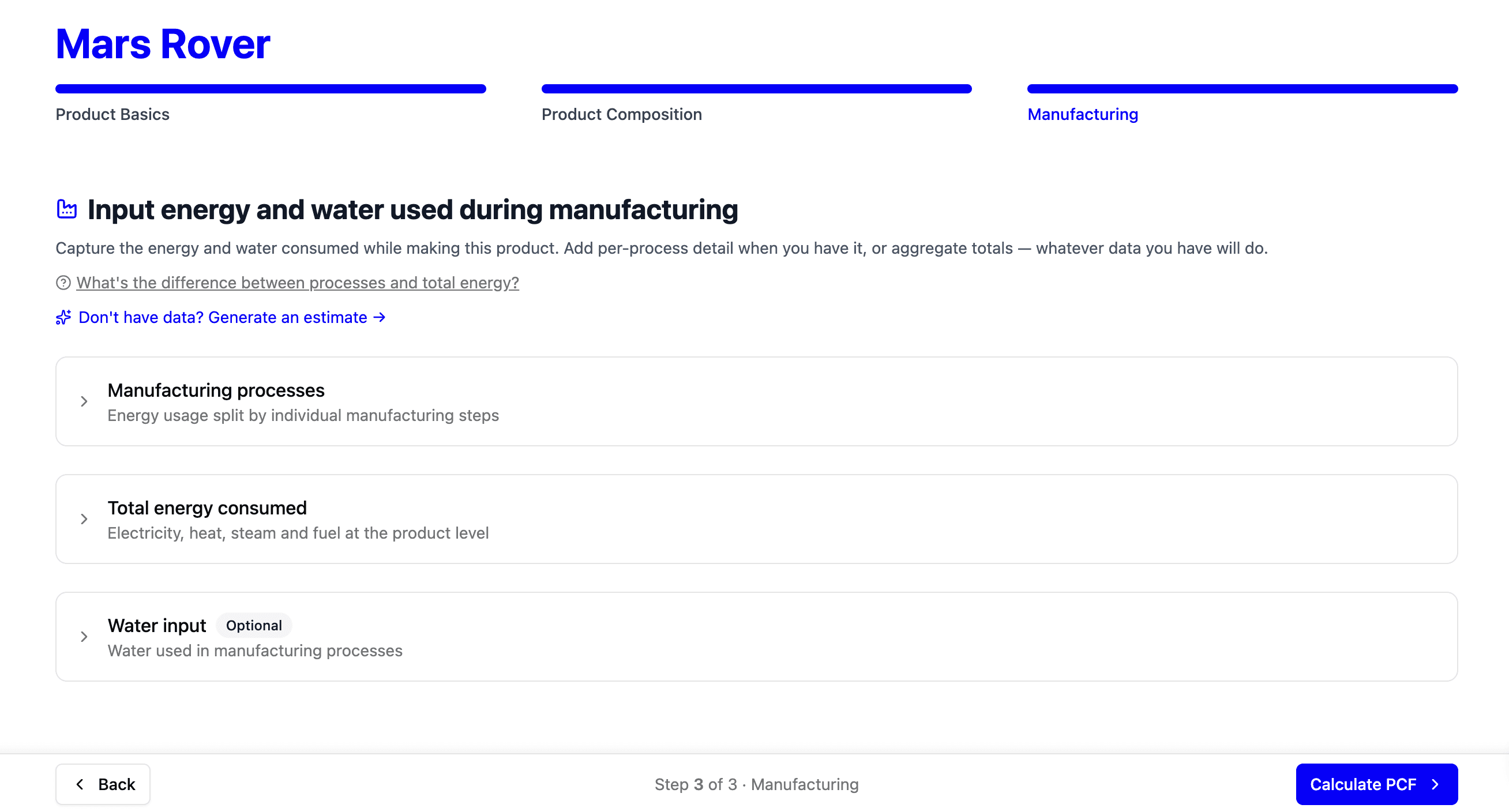
Figure 6: Additionally, define the specific manufacturing processes which were applied to your BOM components or choose for the related energy consumption for the product.
Phase 2: Mapping Agent matches materials to emission factors
Step 5: Review your results and edit matched factors
Once you reach the results page, you can review each match by clicking on a component. This opens a window showing:
- The footprint of that individual component (production + transportation breakdown)
- The emission factor it was matched to (source, region, year, category)
- A data quality indicator (DQI) showing the confidence in the match, based on the PACT framework.
If a match does not look right, click “Change factor” to see alternative matches, or search the database manually using the search bar. You can navigate between components using the arrows at the top of the window.
Once you select a new factor, PCF Studio flags that your results are out of date. Click “Change & Recalculate PCF” and then “Recalculate” on the main results page. This gives you full flexibility to fine-tune your result. PCF Studio saves multiple versions of the same PCF for future reference.
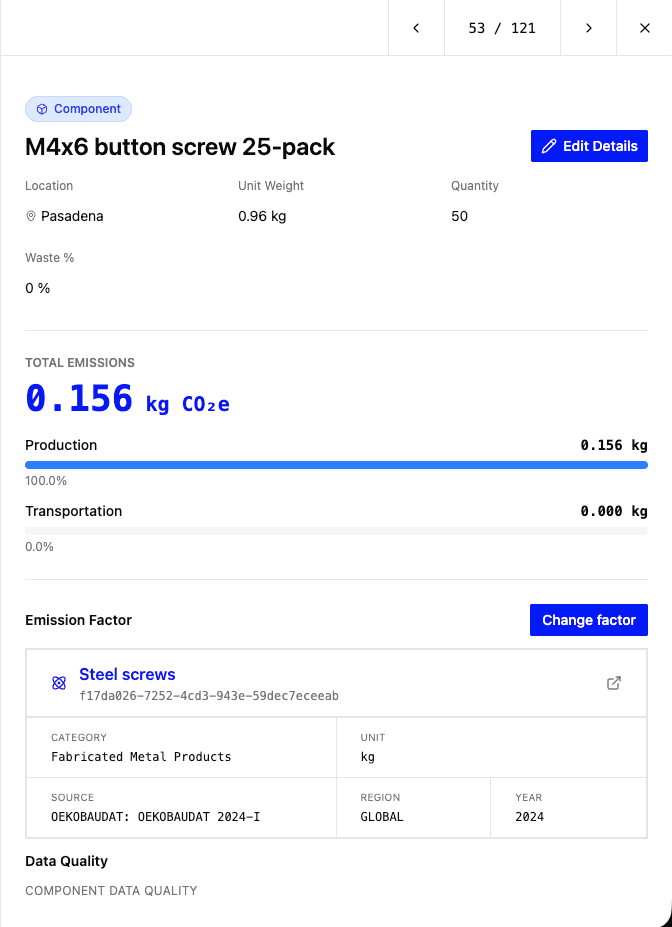
Figure 7: Each of the components / packaging materials will receive a match with an emission factor. By clicking on the line item in the PCF overview, all details are visible and related emission factors are changeable.
Phase 3: Share your results
Step 6: Share or export results
Once you have finalized your result, click “Export” on the results page. You can download a CSV containing either a simplified product total or a full breakdown across all components and emission factors. PDF and JSON export options are coming soon.
The export includes all relevant metadata: emission factor IDs, a version ID, and a PCF ID for full traceability and auditability.
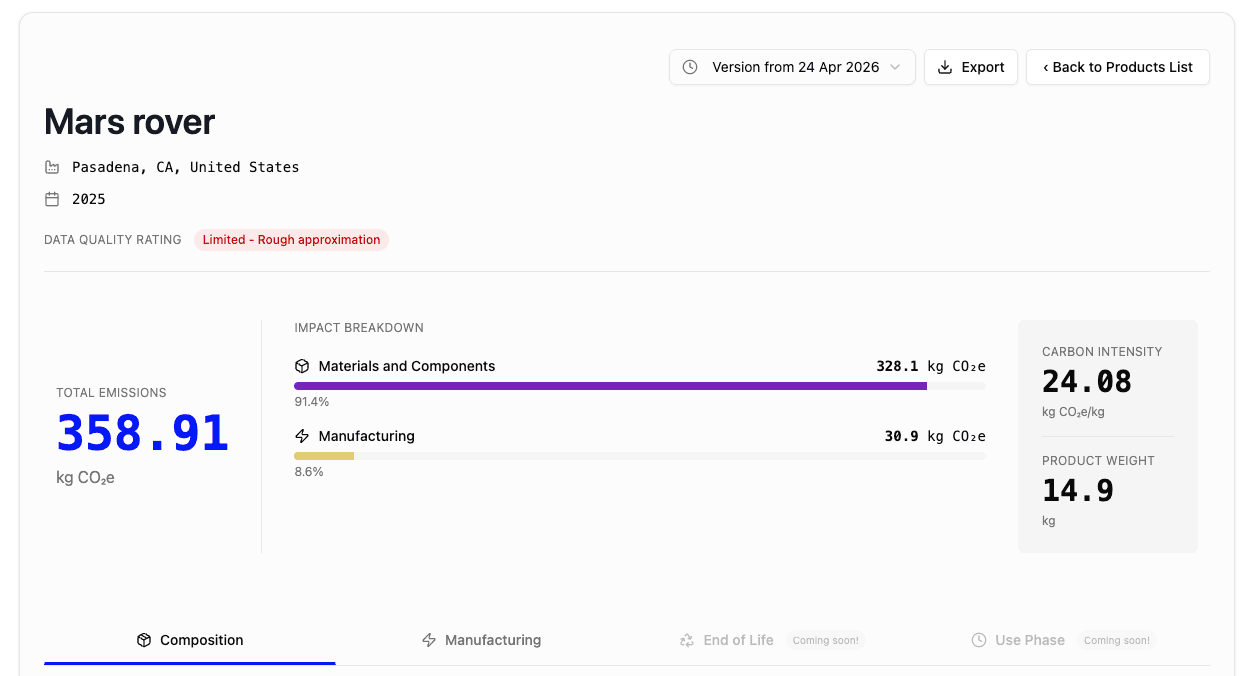
Figure 8: The final PCF can be exported for sharing with your manufacturers or interested stakeholders, giving full visibility in the composition of the product and its related emissions
What PCF Studio handles automatically
Mapping Agent. Each material and component in your BOM is automatically matched to the most appropriate emission factor using AI-powered search. Mapping Agent eliminates the manual lookup process that makes spreadsheet-based PCFs so time-consuming. It provides an auditable record of each factor selected so you can defend your methodology to customers.
Gap filling. Where energy data or component data is not available, PCF Studio provides transparent, adjustable secondary-data estimates drawn from our database. You can override any suggestion at any time.
Certified energy calculations. Energy calculations draw on data from IEA, AIB, EPA, and more, through our ISO-certified Energy API. You do not need to source grid intensity data or fuel coefficients independently.
Certified freight calculations. Transport emissions follow GLEC-accredited and ISO 14083-certified methodology. PCF Studio constructs intermodal routes and selects the most likely transport method automatically.
Data quality indicators. Every matched factor carries a data quality score (1 = best, 5 = worst) across three dimensions: technological representativeness, geographical representativeness, and temporal representativeness. This gives you a clear signal of where results are solid and where further data collection would improve accuracy.
Unit conversion. PCF Studio handles conversions between mass, volume, length, and area units automatically, acting as a time-saver by cutting the need for manual research and input.
FAQs
What standards does PCF Studio align with?
Calculations are aligned with the GHG Protocol Product Life Cycle Standard and ISO 14067. For logistics, we use GLEC-certified methodology. For energy, calculations follow ISO-certified methods. All results are expressed in CO2e using GWP100.
What system boundary does PCF Studio use?
PCF Studio calculates cradle-to-gate PCFs by default: raw material extraction, upstream transport, and manufacturing. End-of-life and use phase calculations are coming soon.
What data do I need to get started?
At minimum, a product name, manufacturing location and a bill of materials (or let PCF Studio generate one using the “template” option).
Can I use my own emission factors?
Yes. If you have supplier-specific emission factors or custom data, you can upload them as private emission factors and use them alongside our public database.
Can I use PCF Studio results for regulatory reporting?
Yes. Since calculations are aligned with GHG Protocol and ISO 14067, include a full audit trail, and carry data quality ratings, they are suitable for CSRD scope 3, Digital Product Passport, and customer RFx responses. The methodology transparency also supports third-party verification. Our tool is aligned and compliant with ISO 14067; however, the user also bears a significant amount of responsibility. The user will need to follow the steps and calculation methodology outlined in the standard in order to ensure auditability.
How often should I recalculate a PCF?
Update your PCF whenever there is a significant change to the product (new materials, new suppliers, redesign), the production process (new machinery, new energy sources), or the data context (updated emission factors), or depending on why you are conducting a PCF. Annual recalculation is a reasonable default. Every calculation in PCF Studio is versioned, making it straightforward to track changes over time.
Can I build PCF capabilities into my own software instead?
Yes. PCF Studio is built on our PCF API, which is available for developers and platform partners who want to integrate PCF calculations programmatically. The API exposes the same calculation logic, Mapping Agent, audit trail, and data quality scoring.
To get started, visit PCF Studio . For API documentation, see the PCF API reference. For methodology details, see our PCF Overview Guide. For questions, contact us .