Use Climatiq inside Excel or Google Sheets
After reading this guide, you will be able to:
- Install and authenticate the Climatiq Excel Add-in or Google Sheets Extension
- Calculate CO2e for flights, electricity, freight, fuel, and procurement directly in your spreadsheet
- Structure a spreadsheet for multi-activity emission calculations
- Aggregate results and export an emissions report - no code required
Why spreadsheet-based calculation?
Not every emissions calculation needs a developer. Sustainability analysts, finance teams, operations managers, and consultants often work primarily in Excel or Google Sheets - and Climatiq’s spreadsheet integrations bring the full power of its emission factor database directly into those tools.
With the Climatiq Excel add-in or Google Sheets extension, you can calculate emissions across all major activity categories - air travel, road and rail, electricity, fuel combustion, freight, and procurement spend - without writing a single line of code. Apply custom formulas at scale across your data, and combine results with your existing financial or operational data in the same spreadsheet.
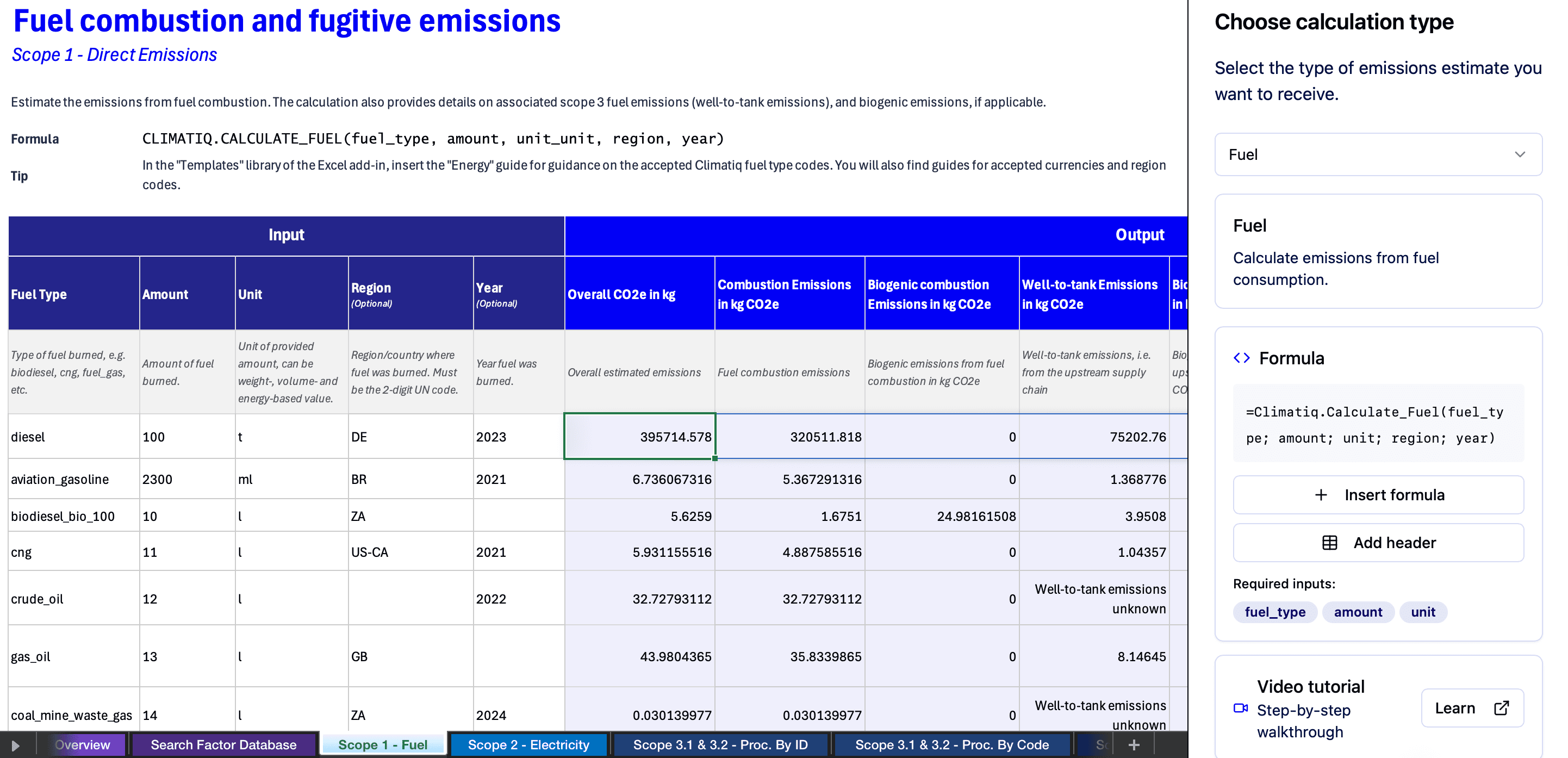 Example: a Scope 1 fuel combustion calculation using the Climatiq Excel Add-in.
What this works well for
The spreadsheet integration is well suited to:
- Annual emissions reporting cycles, where data already lives in spreadsheets
- One-off or ad hoc footprint calculations for a project, event, or business unit
- Sustainability consultants working across multiple clients in familiar tools
- Supplier emissions surveys and questionnaires
- Proof-of-concept calculations before committing to a full API integration
- Teams sharing results with stakeholders who expect a spreadsheet format
It is less suited to processing thousands of calculations at once - for bulk or automated workloads, the Climatiq API and its batch endpoints are a better fit. Similarly, if you need to embed emissions calculations inside your own product or application, the Climatiq API is the right approach for developers, or Data Studio for sustainability teams who need a no-code platform for managing and reporting emissions at scale.
If your business activity does not fit one of the dedicated calculation types, the Autopilot formula can handle it - submit a free-text description of the activity and Autopilot will automatically find the best-matching emission factor.
What to expect
Once installed and authenticated, the add-in and extension provide a guided experience directly inside your spreadsheet:
- Guided sidebar panel - A right-hand panel lets you choose your calculation type from a dropdown, shows the required inputs for that activity, and inserts the formula into your selected cell automatically. No need to remember formula syntax.
- Pre-built GHG Protocol templates - The Templates library includes ready-made spreadsheet templates aligned with the GHG Protocol. Insert a template to get a pre-structured layout for Scope 1, 2, and 3 reporting.
- Reference guides for accepted values - Built-in guides for units, currencies, energy types, and region codes can be inserted directly into your workbook, so you always have the accepted values on hand when filling in your data.
- Linked documentation per formula - Each formula in the sidebar links to its dedicated reference documentation, so you can dig into methodology or input details without leaving your spreadsheet.
- Video tutorials - Step-by-step walkthroughs are accessible directly from the sidebar for each calculation type.
- Dedicated support tab - A built-in support tab gives you direct access to the Climatiq support team from within the add-in.
Products you can use
Install the Climatiq add-in from the Microsoft AppSource store. Works in both desktop Excel and Excel Online. Authenticate once with your API key and use Climatiq formulas in any cell.
Install the Climatiq extension from the Google Workspace Marketplace. Authenticate with your API key and use Climatiq formulas as custom functions in any Google Sheet.
Browse Climatiq’s emission factor database to understand what data is available. Open Data Explorer →
Your journey
Install the add-in or extension
Get the Climatiq add-in from Microsoft AppSource (Excel) or the extension from the Google Workspace Marketplace (Google Sheets). Install it into your spreadsheet environment - no administrator access is required for most accounts.
Generate and set your API key (if required)
If the add-in or extension shows a warning in the sidebar after installing, you will need to authenticate with an API key. Create a Climatiq account, generate an API key from the Dashboard, and enter it in the panel. Your key is stored locally and used for all subsequent calculations.
Choose the right formula for each activity
Use the guided sidebar panel to select a calculation type - flights, electricity, fuel, freight, procurement, or other. The sidebar shows you the required inputs and inserts the formula for you. If you are unsure which activity type applies or your data is in a free-text format, use the Autopilot formula to let Climatiq find the best match automatically.
Structure your spreadsheet and apply formulas
Set up columns for the inputs each calculation requires - for example, origin and destination for travel, or kWh and region for electricity. Use the built-in reference guides for accepted unit, currency, energy, and region values. Enter the formula in your CO2e column with the relevant cell references, then drag it down to calculate every row.
Review and export results
Sum the CO2e column for your total, and review any cells that return an error or unexpected value - these usually indicate an unsupported input or missing required field. Export or share the spreadsheet as your emissions report.
Supporting resources
Full walkthrough for installing and using the Climatiq Excel Add-in, including all formula types, authentication, and troubleshooting.
Full walkthrough for installing and using the Climatiq Google Sheets Extension, including custom function reference and usage examples.
Step-by-step instructions for generating and managing your Climatiq API key from the Dashboard.
Watch our video playlist for step-by-step walkthroughs of our integrations.