Calculate emissions from CSVs without writing code
After reading this guide, you will be able to:
- Choose the right tool based on your preferred workflow and how your CSV data is structured
- Upload activity data into Data Studio’s Bulk Calculators to generate CO2e estimates by category
- Import CSV data into Excel or Google Sheets and apply Climatiq formulas row-by-row
- Review, validate, and export a complete emissions report - no coding required
Turning raw data into emission estimates
Most organizations hold business data (e.g. energy usage, spend information or travel data) in spreadsheets, expense systems, purchase orders, or logistics reports. Converting that raw data into CO2e values means matching each row to the right emission factor and methodology. Climatiq offers two approaches depending on where you want to work:
| Your situation | Best approach |
|---|---|
| You want a dedicated workspace to upload, map, and manage activity data by category | Data Studio - Bulk Calculators with pre-built templates per emission category |
| Your data already lives in Excel or Google Sheets and you want to stay there | Excel Add-in or Google Sheets Extension - apply Climatiq formulas directly in your spreadsheet |
Option A - Data Studio: Bulk Calculators
Data Studio is Climatiq’s dedicated platform for sustainability teams. The Bulk Calculators feature provides pre-configured upload templates for each major emission category. You select the calculator for your activity type, fill in or upload your data using the provided template, and Data Studio returns CO2e estimates with full audit visibility.
Available calculators
| Calculator | What it covers |
|---|---|
| AI Matching | Automatically matches any business activity description to the most relevant emission factor - upload your data and receive certified calculations with full audit visibility |
| Electricity | Location-based and market-based emissions for electricity consumption |
| Distance Travel | Travel emissions calculated from routing data (origin, destination, mode) |
| Spend Travel | Travel emissions from expense data - turns spend amounts into carbon estimates |
| Freight | Supply chain emissions across all transport modes |
| Heat / Steam | Scope 2 emissions from thermal energy use |
| Fuel | Scope 1 emissions from fuel combustion |
How it works
- Log in to your Climatiq account at climatiq.io and click Data Studio from the main navigation
- Navigate to Bulk Calculators and select the calculator that matches your activity category
- Download the template for that calculator and populate it with your data
- Upload the completed template - Data Studio maps your inputs to the correct emission factors and returns CO2e results
- Review results and check for any failed matches, then download the completed CSV to your device
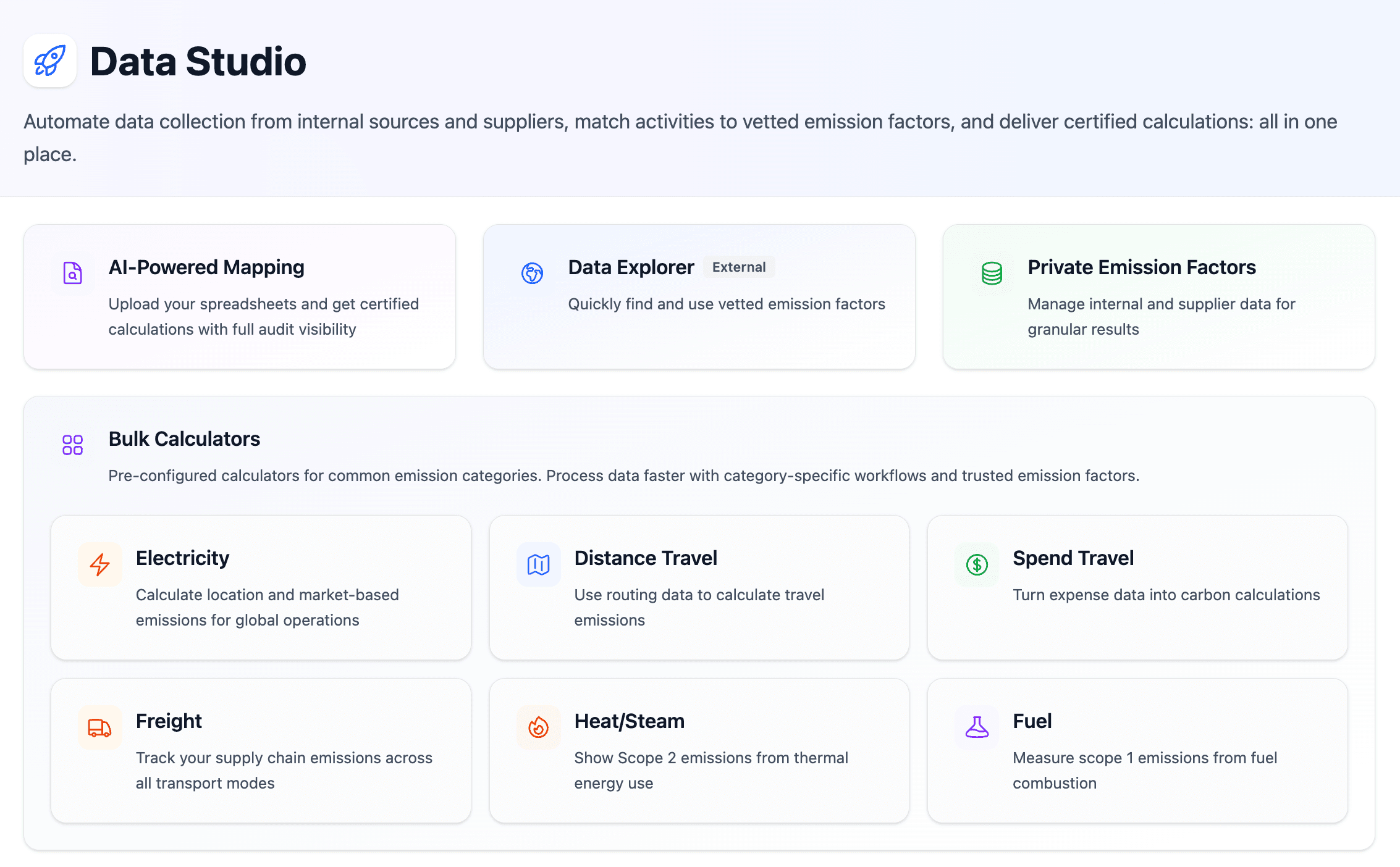 Data Studio’s Bulk Calculators - select an emission category, download the template, and upload your data to receive CO2e results.
Option B - Excel Add-in or Google Sheets Extension
If your data already lives in a spreadsheet - or you need to share results with stakeholders who expect a spreadsheet format - the Climatiq Excel Add-in and Google Sheets Extension let you calculate emissions directly in your existing file.
Import or paste your CSV data, use the guided sidebar to select a calculation type, and apply the formula to your data column. Drag it down to calculate every row. The result is a live spreadsheet with CO2e values alongside your source data.
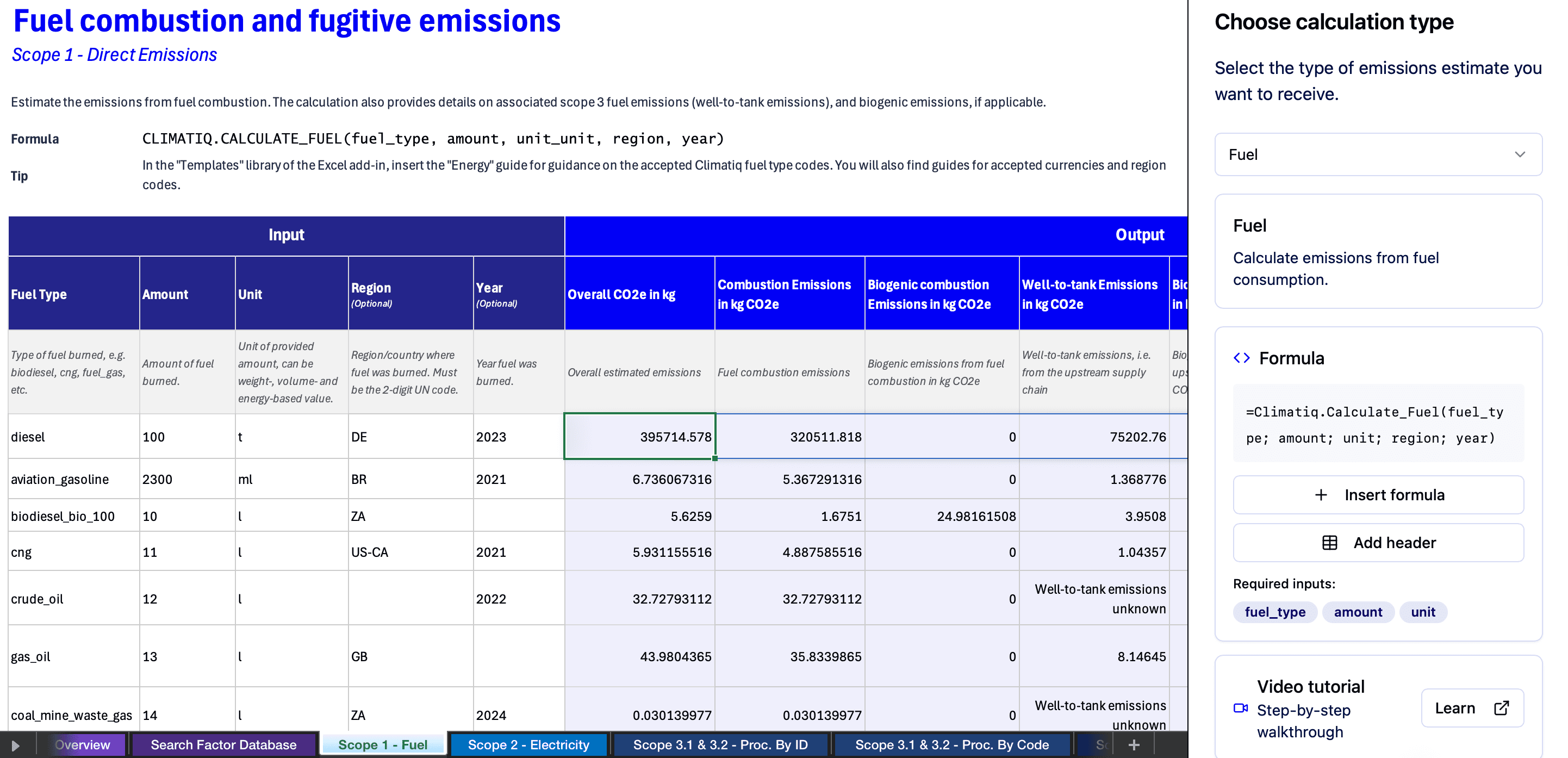 The Climatiq Excel Add-in - use the guided sidebar to apply formulas to your imported data.
This approach works well for teams who want to keep results inside their existing reporting files, or who need to combine emissions data with financial or operational data in the same sheet. See the Use Climatiq in Excel or Google Sheets guide for a full walkthrough.
Install the Climatiq Excel Add-in, authenticate with your API key, and apply formulas to your imported CSV data.
Install the Climatiq Google Sheets Extension and use Climatiq custom functions to calculate emissions across your dataset.
Your journey
Audit your CSV data
Review your CSV and identify what activity categories it contains - electricity, travel, freight, fuel, spend, or a mix. Check whether you have the quantities and units each category requires. This tells you which Bulk Calculator(s) to use, or which formula type to apply in your spreadsheet.
Choose your approach
If you want a dedicated upload-and-review workflow with pre-built templates, use Data Studio’s Bulk Calculators at climatiq.io/data-studio . If your data is already in Excel or Google Sheets and you want to keep it there, use the add-in or extension. Both produce auditable CO2e results without any coding.
Prepare and structure your data
Clean your data before uploading: remove duplicate rows, fill in missing quantities and units, and standardize activity descriptions. For Data Studio, download the template for your chosen calculator from climatiq.io/data-studio and map your columns to its required fields. For Excel or Sheets, add the columns each formula type requires - refer to the Excel Add-in guide or Google Sheets Extension guide for accepted values.
Calculate emissions
In Data Studio, upload your completed template into the relevant Bulk Calculator and review the returned CO2e estimates. In Excel or Sheets, apply the Climatiq formula to your CO2e column and drag it down to cover every row.
Review, validate, and export
Check results for any rows with errors or failed matches. In Data Studio, download the completed CSV to your device once you are satisfied with the results. In Excel or Sheets, sum the CO2e column for your total and export or share the spreadsheet directly.
Supporting resources
End-to-end guide to calculating emissions directly inside your spreadsheet - from installation to exporting your report.
Full walkthrough for installing and using the Climatiq Excel Add-in, including all formula types and troubleshooting.
Full walkthrough for the Climatiq Google Sheets Extension, including custom function reference and usage examples.
Log in to access Bulk Calculators, upload activity data, and download your completed CO2e report.