Guide to the Google Sheets Extension
Utilize Climatiq’s custom formulas in Google Sheets to seamlessly convert your business activity data into carbon estimates.
Overview
The Climatiq Google Sheets Extension generates audit-ready carbon estimates directly within Google Sheets. It uses verified emission factors and data from Climatiq’s trusted Data Explorer to calculate emissions across key business activities such as freight, energy, procurement and more. All estimates are GHG Protocol and ISO 14067 & 83 compliant, with results accompanied by a comprehensive audit trail for transparency.
This makes it easy to calculate, visualize, and analyze carbon emissions in a familiar spreadsheet environment. You can build custom reports, create graphs, and share results with stakeholders.
Pricing & Plans
Upon installing the Extension, you’ll automatically be enrolled in our free Community plan. This includes 250 emission calculations per month with access to all Climatiq emission calculation formulas. Your monthly allowance resets on the 1st of each month.
Please note that the free plan is only meant for testing purposes. For commercial usage or if you need more than 250 calculations per month, please contact our team .
Installation Guide
Download the Extension
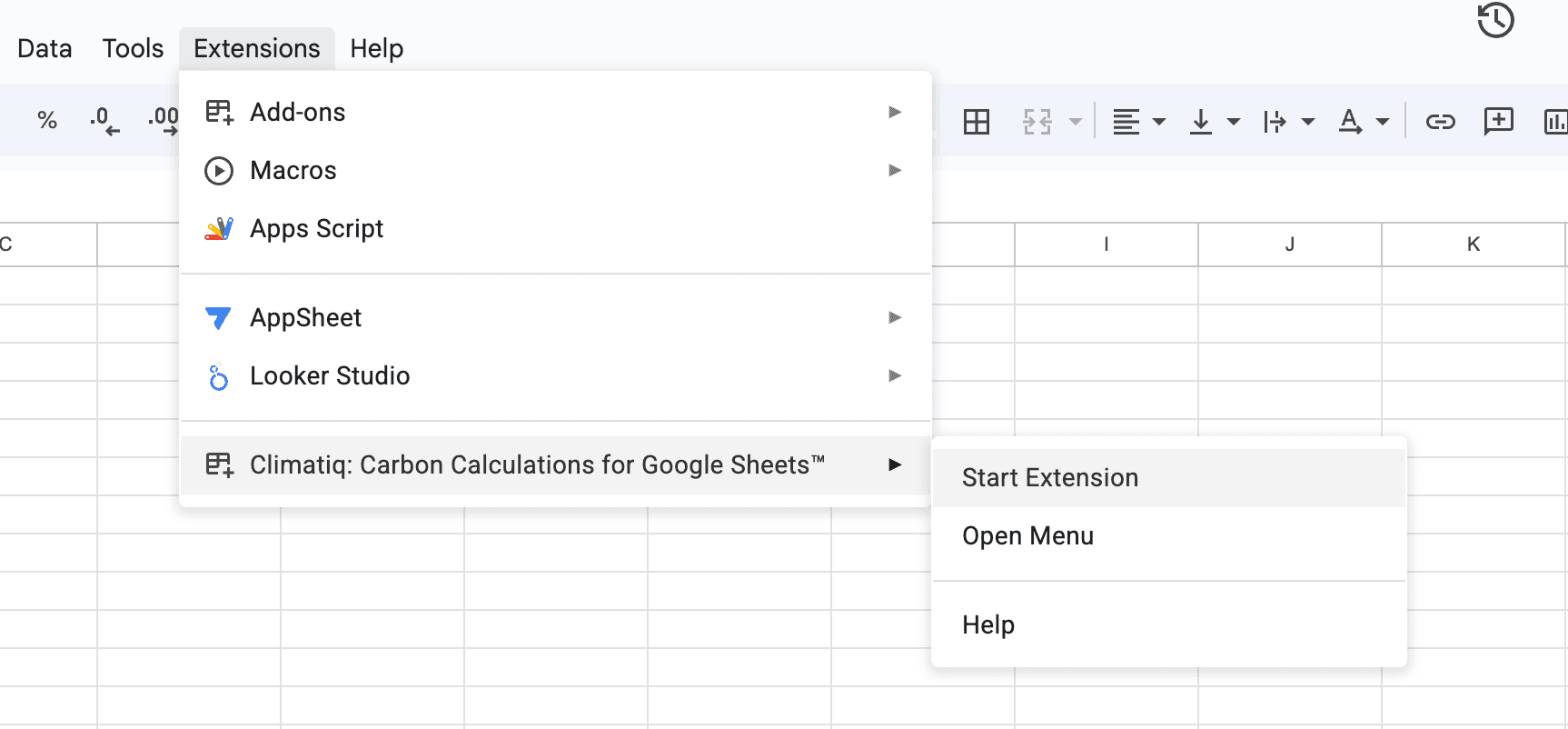
Install the Extension from the Google Workspace Marketplace . Once installed, you’ll find it in the “Extensions” menu in your Google Sheets navigation bar.
Explore the Examples
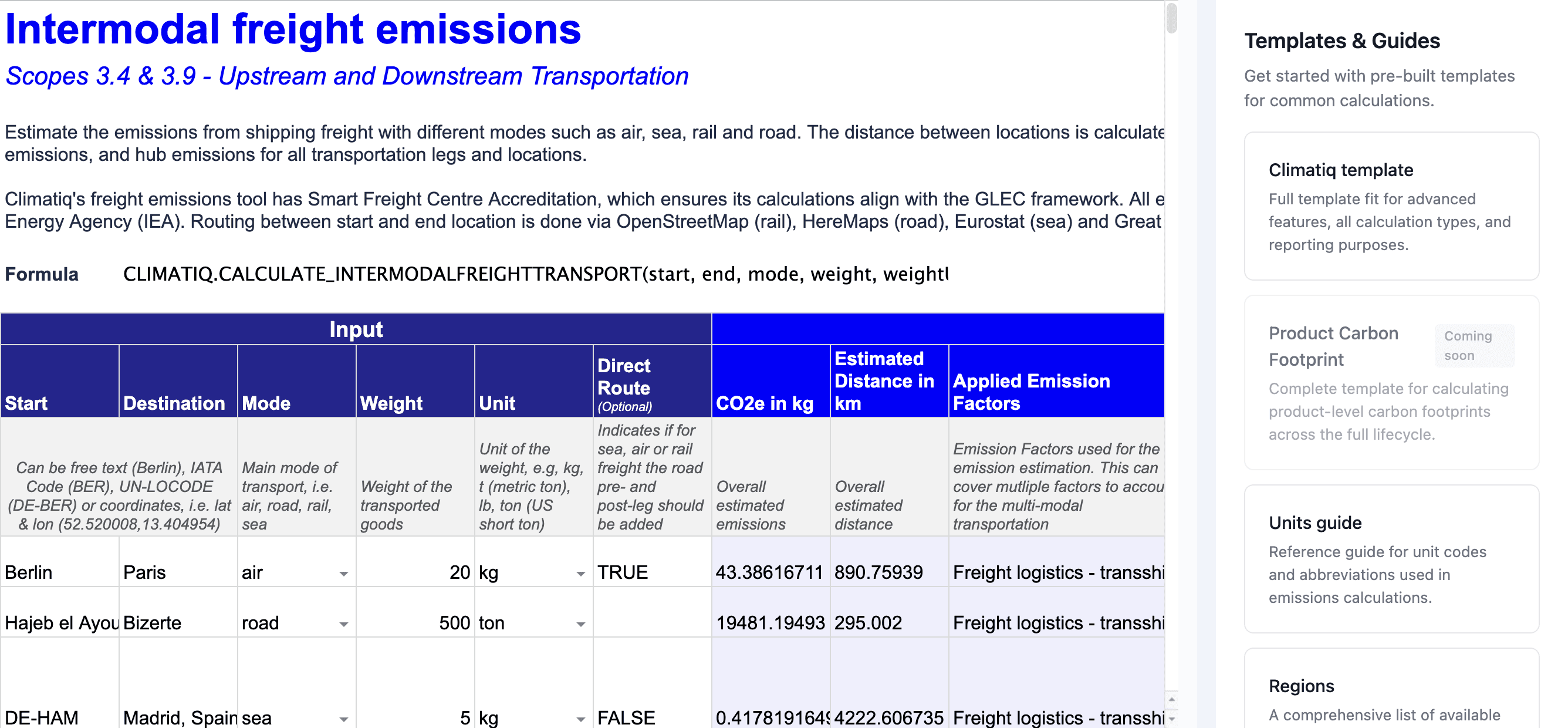
We have curated a Templates library in the Extension sidebar, where you can explore GHG Scope aligned templates for more complex calculations. You can perform calculations directly in your existing business activity files - our templates are there to guide you, but using them is completely optional. Save a local copy of the template to edit and make changes.
Optional: Set your Climatiq Key
Once installed, only if you receive a warning message prompting you to set your Climatiq Key in the Support tab, please follow these steps .
You can then paste the key via the Support tab in the Extension sidebar by navigating to Extensions > Start Extension > Support > Scroll to the bottom and paste in the field.
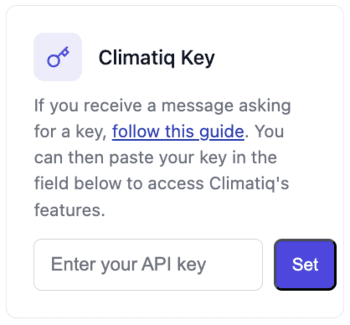
Your Climatiq Key connects the Extension to your account and tracks your usage against your plan limits. The key is saved to your account, and does not need to be set again if you are working in a new spreadsheet.
Keep your Climatiq Key private. Your key is linked directly to your account, and any calculations performed with it count toward your plan limits. We recommend keeping your key confidential or sharing it only with trusted parties.
What’s New
Version 2 (January 15, 2026)
Since mid-2024, Climatiq’s Google Sheets extension has enabled you to access the Climatiq database and advanced emission estimations directly within your spreadsheets. Based on extensive user feedback, we’ve now released a significantly improved version of the extension.
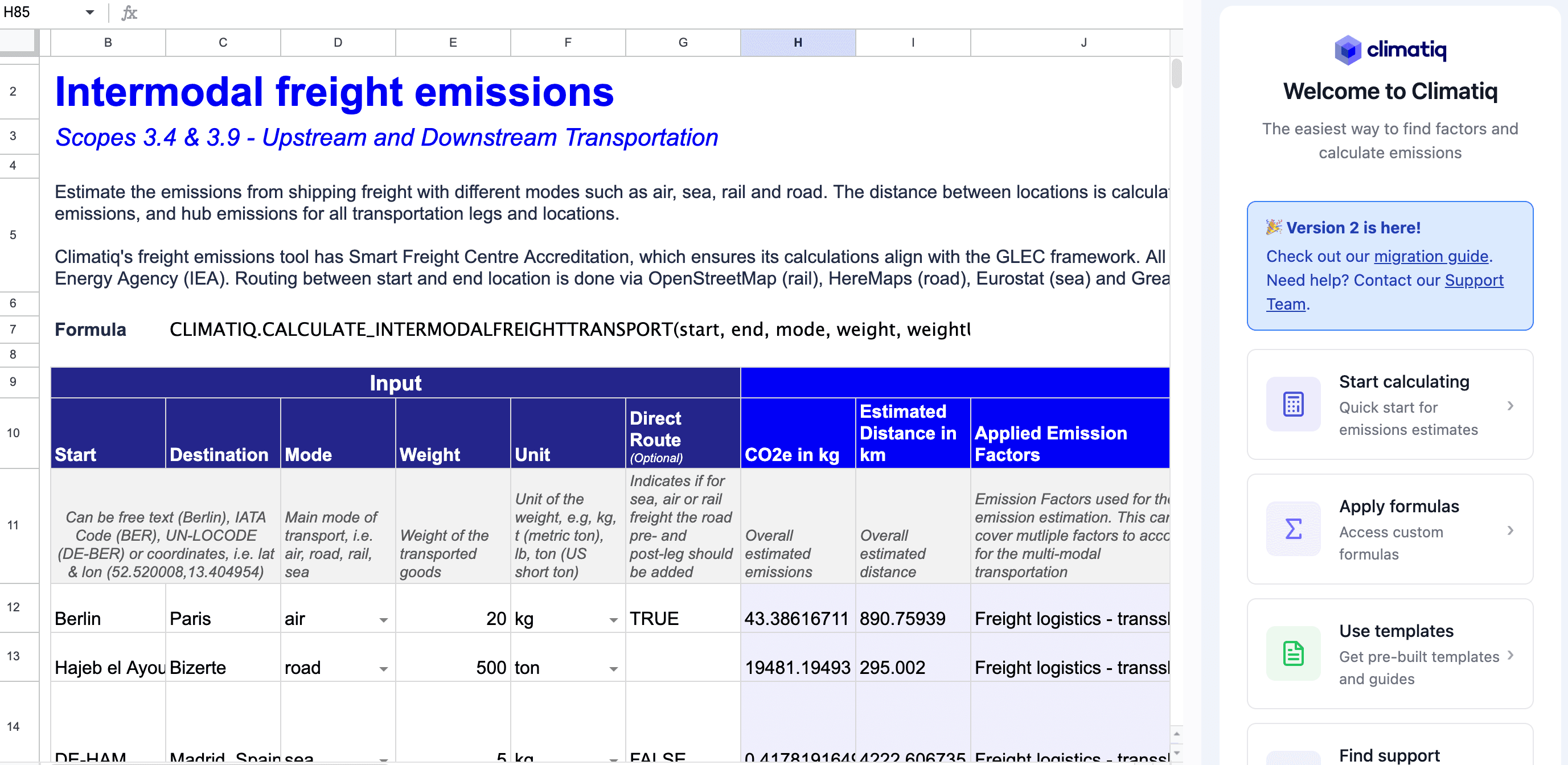
Important: This update includes breaking changes to formula parameters. Existing formulas will need to be updated to work with the new version.
What’s Changed
After the update, you’ll notice:
- The sidebar has been completely redesigned with new templates, formula library, and support access
- Formulas with changed parameters will display errors where the data structure no longer matches
- Access management switches to email-based permissions, automatically retrieved using your Google account email. If your Google account email differs from your Climatiq account, you can manually set your key in the Support tab of the Extension.
Updating Your Formulas
To fix formula errors after the update:
- Open your sheet (you’ll see errors where parameters changed)
- Open the new Climatiq sidebar and navigate to the Formulas library for updated documentation
- Update each impacted formula with the new parameter structure
Changed Formulas
In addition to the removal of the ShowDetails input value, the following changes have been made to the formulas:
- Search Emission Factor Database: Added support for selecting specific emission factor database versions and returning applicable scopes.
- Intermodal Freight: Upgraded to the latest freight estimation endpoint (using GLEC 3.1), with expanded route coverage via a secondary provider.
- Air, Road, Rail & Spend-Based Travel: Updated to the latest Climatiq travel endpoint using 2025 US EPA and UK BEIS factors.
- Fuel: Updated to the latest Climatiq fuel endpoint using 2025 US EPA and UK BEIS factors.
- Electricity: Supports custom supplier-specific emission factors for market-based estimates and returns full location- and market-based emissions across all four stages by default. Updated to the latest 2025 electricity factors.
- General Estimate: Added the option to select the preferred calculation method (AR4, AR5, or AR6).
- Autopilot: Updated to the latest Autopilot version, now offering multi-language support and expanded search across the full database (scope 1, 2 and 3), with additional filtering options.
For complete formula documentation, visit the Formulas library in the new sidebar or refer to the individual formula pages in this documentation.
Added Formulas
- Calculate Heat & Steam: Estimate scope 2 and 3 emissions for heat and steam usage.
- Retrieve Factor Details: Retrieve additional audit trail data about the factors used in an estimation. Apply this formula to the ‘Applied Emission Factors’ output cell from any relevant estimation.
Deprecated Formulas
The following formulas have been removed to streamline the extension:
- Classification: Duplicate of the procurement-by-classification estimation formula
- Calculate Cloud Computing - Virtual Machines: Cloud computing estimations are being centrally deprecated
- Search Available Regions, Search Available Fuels Type and Search Available Electricity Suppliers: These input value options are now available directly via the Templates view in the sidebar
Support
If you have questions or encounter issues during migration, reach out to our team via our support form .
Navigating the Extension
To see an overview of the available formulas in a sidebar within Google Sheets, you can open the documentation via the Extensions menu (Extensions > Climatiq > Open Menu > Formulas).
Access to all our formulas start with =CLIMATIQ. When typing this into a cell in sheets, a variety of different formulas will appear. These formulas can be applied in your existing Google Sheets workbooks of business data.
Key Concepts
Understanding these basics will help you get the most out of the Extension.
How the Extension Calculates Emissions
When you use a Climatiq formula, the Extension connects to our database of verified emission factors, which are scientific values that convert activities (like flights or energy use) into carbon emissions.
Here’s what happens:
- You provide activity details (like locations, distances, or energy amounts)
- The Extension shares this data with Climatiq, where the applicable emission estimation methodology is applied and the relevant emission factors for your activity are selected and applied
- Your results are calculated and returned with an audit trail showing exactly which emission factors were used
This ensures your carbon estimates are accurate, transparent, and compliant with reporting standards like the GHG Protocol.
Working with Formula Inputs
Each formula has required inputs that must be filled in, and optional inputs that can be skipped.
Formatting Rules:
- Text values need quotation marks:
"Berlin"notBerlin - Numbers don’t need quotation marks:
100not"100" - Locations accept city names (“Berlin”), airport codes (“BER”), or latitude-longitude coordinates (52.520008, 13.404954)
Example:
=Climatiq_Calculate_Travel_Air("BER", "JFK", "economy")✓=Climatiq_Calculate_Travel_Air("BER", "JFK")also works ✓ (flight class is optional)
Understanding Results and Errors
How Results Are Displayed
Climatiq formulas return results across multiple columns with CO2e emissions, distance/consumption data, applied emission factors, and calculation methodology. To add labels above your results, use the header formulas by adding _Headers to the original formula name (e.g., =Climatiq_Calculate_Travel_Air_Headers()). To add further audit details to the results, utilize our audit-trail formulas.
Common Error Messages
- “Climatiq key not set” or “Invalid key”: Your Climatiq Key isn’t set correctly. Generate your key and set it via Extensions > Start Extension > Support > Set key.
- “#NAME!”: You forgot quotation marks around text, i.e. change
Berlinto"Berlin". - “You do not have access to this feature”: You’ve reached your monthly limit or this feature isn’t in your plan.
- Other calculation errors: Double-check that your inputs match the required format in the formula documentation.
See the Troubleshooting guide for more help resolving Google Sheets errors.
Support and Feedback
If you have questions, reach out to the Climatiq team via the website chat or our support form . If you’re finding the Extension helpful, we’d appreciate a rating on the Google Workspace Marketplace .
Formulas
The custom Climatiq formulas are split into four major categories:
- Estimations: Easily calculate the emissions for different kinds of business activities, e.g. travel, shipping and energy usage based on detailed methodologies.
- Autopilot: Leverage Climatiq’s Mapping Agent Autopilot to automate spend- and activity-based emission estimates.
- Search: Look up emission factors from our Data Explorer, directly within Google Sheets.
- Audit Trail: Add comprehensive audit-trail details to your emission estimate results.
Our YouTube Playlist provides step-by-step videos that guide you through every formula. Although the playlist is for our Excel integration, the inputs and formulas are identical in Google Sheets.
Freight Shipping
Intermodal Freight
Calculate the total estimated emissions of freight shipping. The distance between the locations will be calculated by considering the actual transport network where possible.
Climatiq_Calculate_IntermodalFreightTransport(start; end; mode; weight; weightUnit; direct; vehicle_details)
Parameters
| Name | Required | Type | Description |
|---|---|---|---|
start | ✓ | Text | Start location, can be free text (Berlin), IATA Code (BER), UN-LOCODE (DE-BER) or coordinates, i.e. lat & lon (52.520008,13.404954) |
end | ✓ | Text | Destination location, can be free text (Berlin), IATA Code (BER), UN-LOCODE (DE-BER) or coordinates, i.e. lat & lon (52.520008,13.404954) |
mode | ✓ | Text | Main mode of transport. Valid values are: air, road, rail and sea |
weight | ✓ | Number | Weight of the transported goods |
weight_unit | ✓ | Text | Unit of the weight. Valid values are: g, kg, t (metric ton), lb, ton (US short ton). |
direct | ✕ | True/False | Indicates if in case of sea, air or rail freight the road pre- and post-leg should NOT be added. |
vehicle_details | ✕ | Text | Allows you to input additional details on the vehicle used for the shipment. Refer to the examples below. |
Examples
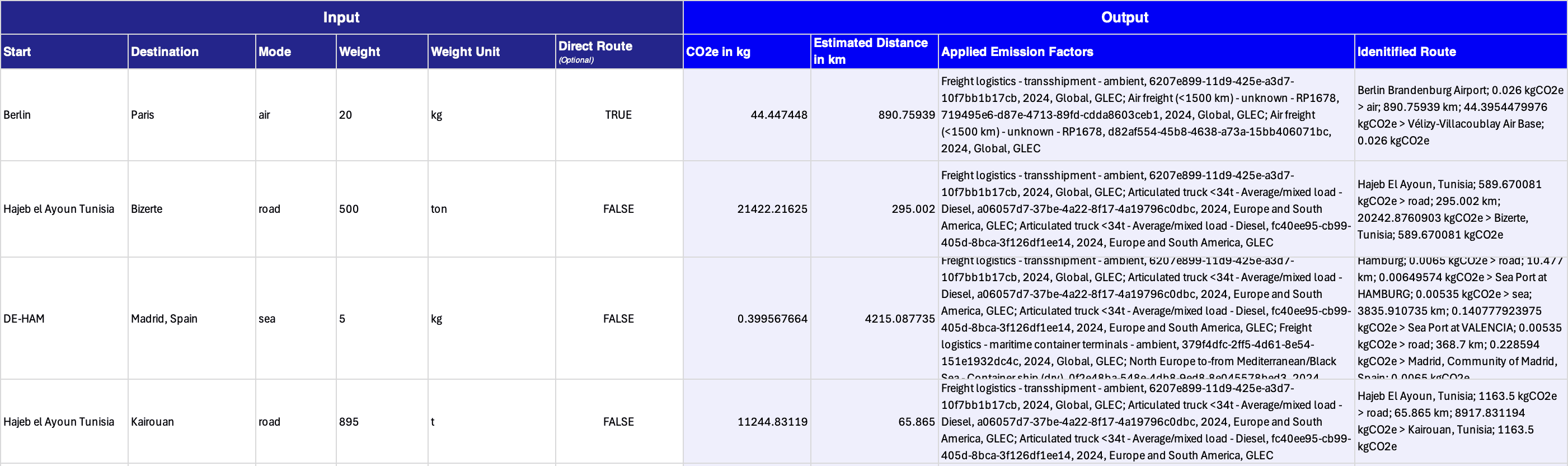
Example inputs for vehicle_details
Add granularity to your Road, Rail, Air or Sea Freight calculations by including additional vehicle details. These need to be inputted in one vehicle_details input field, and not split out. Here are some examples of how to add these parameters into the Freight formula:
Road Freight
For road freight, it is possible to specify the vehicle_type, vehicle_weight and fuel_source. The table of valid parameter combinations is available here.
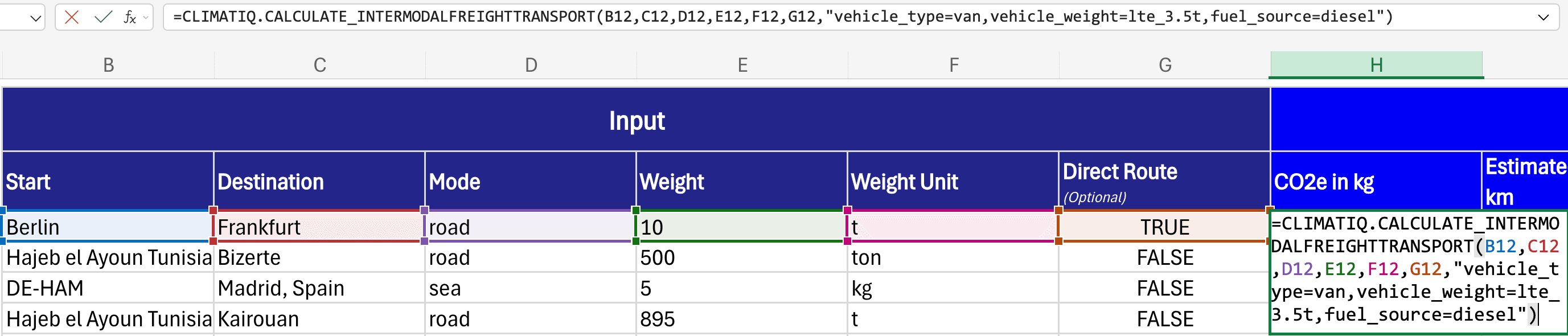
The following formula calculates emissions for a 10t road shipment from Berlin to Frankfurt using a diesel-powered van with a carrying capacity of ≤ 3.5t:
=Climatiq_Calculate_IntermodalFreightTransport("Berlin","Frankfurt","road",10,"t",TRUE,"vehicle_type=van,vehicle_weight=lte_3.5t,fuel_source=diesel")
Sea Freight
For sea freight, it is possible to specify the vessel_type, tonnage and fuel_source. The table of valid parameter combinations is available here.
The following formula calculates emissions for a sea freight journey using a bulk carrier with a capacity of less than 10 deadweight kilotonnes (dwkt — the maximum tonnage that a ship can safely carry), powered by heavy fuel oil (hfo):
=Climatiq_Calculate_IntermodalFreightTransport("Hamburg","Barcelona","sea",10,"t",FALSE,"vessel_type=bulk_carrier,tonnage=lt_10dwkt,fuel_source=hfo")

Air Freight
For air freight, it is possible to specify the aircraft_type of the vehicle, as well as the radiative_forcing_index. The table of valid options is available here.
The following formula calculates emissions for a 10t air freight journey from Berlin to Cape Town in a freighter aircraft (dedicated cargo plane), with a radiative forcing index applied:
=Climatiq_Calculate_IntermodalFreightTransport("Berlin","Cape Town","air",10,"t",FALSE,"aircraft_type=freighter,radiative_forcing_index=2")

Rail Freight
For rail freight, it is possible to specify the fuel_source of the vehicle, as well as the load_type. The table of valid parameter combinations is available here.
The following formula calculates emissions for a rail freight shipment for 10t of chemicals using a diesel-powered train:
=Climatiq_Calculate_IntermodalFreightTransport("Berlin","Frankfurt","rail",10,"t",TRUE,"fuel_source=diesel,load_type=chemicals")

Travel
Air Travel
Calculate the total estimated emissions of air travel. The distance between the airports will be calculated using great circle distance.
Climatiq_Calculate_Travel_Air(start; end; flightclass; year)
Parameters
| Name | Required | Type | Description |
|---|---|---|---|
start | ✓ | Text | Start location, can be free text (Berlin), IATA Code (BER), UN-LOCODE (DE-BER) or coordinates, i.e. lat & lon (52.520008,13.404954) |
end | ✓ | Text | Destination location, can be free text (Berlin), IATA Code (BER), UN-LOCODE (DE-BER) or coordinates, i.e. lat & lon (52.520008,13.404954) |
flightclass | ✕ | Text | Flight class, can be empty, average,economy, premium_economy, business or first. |
year | ✕ | Number | The year in which the travel occurred. |
Examples

Road Travel
Calculate the total estimated emissions of road travel. The distance between the locations will be calculated by considering the actual road network where possible.
Climatiq_Calculate_Travel_Road(start; end; car_size; car_type; year)
Parameters
| Name | Required | Type | Description |
|---|---|---|---|
start | ✓ | Text | Start location, can be free text (Berlin), IATA Code (BER), UN-LOCODE (DE-BER) or coordinates, i.e. lat & lon (52.520008,13.404954) |
end | ✓ | Text | Destination location, can be free text (Berlin), IATA Code (BER), UN-LOCODE (DE-BER) or coordinates, i.e. lat & lon (52.520008,13.404954) |
car_size | ✕ | Text | Size of the car. Valid values are small, medium, large and average. |
car_type | ✕ | Text | Type of fuel used by the car. Valid values are: petrol, diesel, hybrid (cars with a battery that is recharged by the internal combustion engine), plugin_hybrid (cars with an internal combustion engine and a battery that can be plugged in), battery (for electric vehicles) and average. |
year | ✕ | Number | The year in which the travel occurred. |
Examples

Rail Travel
Calculate the total estimated emissions of rail travel. The distance between the locations will be calculated by considering the actual rail network where possible. Otherwise the road distance will be used.
Climatiq_Calculate_Travel_Rail(start; end; year)
Parameters
| Name | Required | Type | Description |
|---|---|---|---|
start | ✓ | Text | Start location, can be free text (Berlin), IATA Code (BER), UN-LOCODE (DE-BER) or coordinates, i.e. lat & lon (52.520008,13.404954) |
end | ✓ | Text | Destination location, can be free text (Berlin), IATA Code (BER), UN-LOCODE (DE-BER) or coordinates, i.e. lat & lon (52.520008,13.404954) |
year | ✕ | Number | The year in which the travel occurred. |
Examples

Spend-based Travel
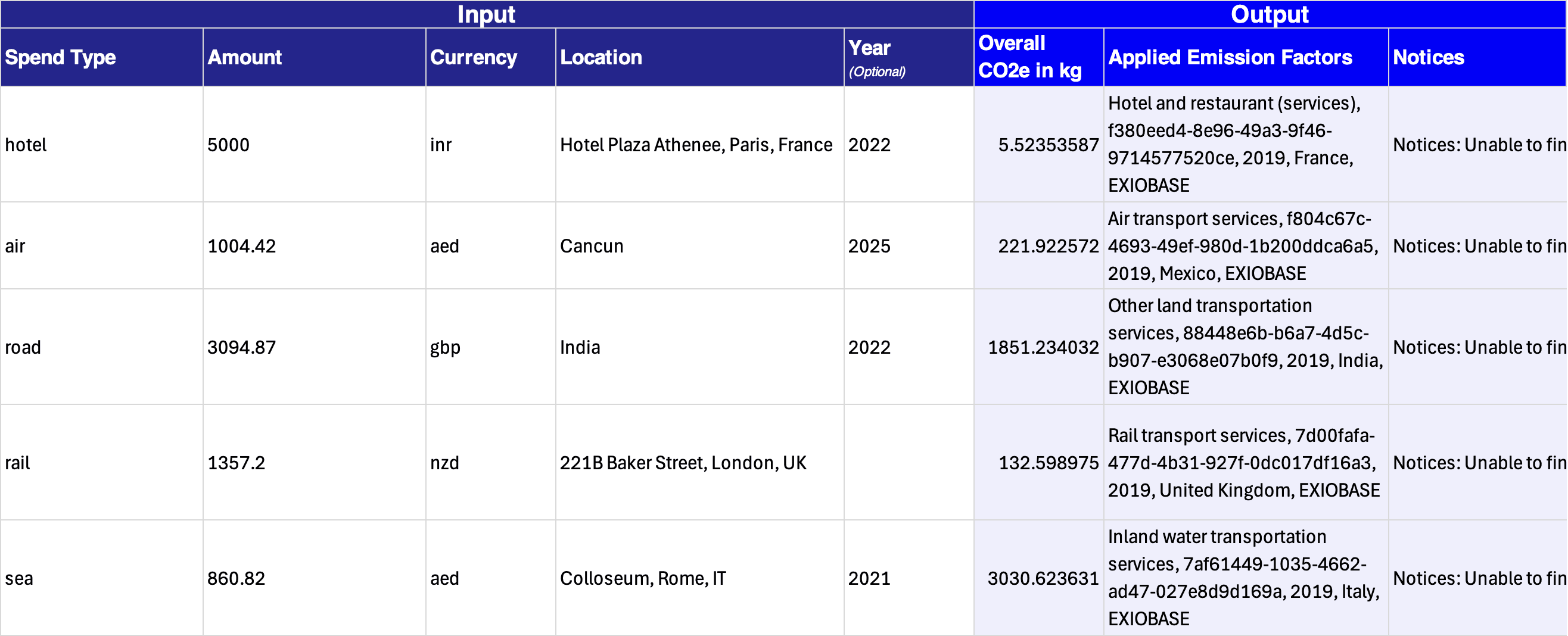
Calculate travel emissions based on spend-based data in any currency by using EXIOBASE emission factors. This calculation automatically takes inflation into account, if the year you spent the money was different than the year of the emission factor.
Climatiq_Calculate_Travel_Spend(spend_type; amount; currency; location; year)
Parameters
| Name | Required | Type | Description |
|---|---|---|---|
spend_type | ✓ | Text | The type of travel associated with the expenditure. Valid values are: air, road, rail, sea, and hotel. |
amount | ✓ | Number | The amount of money spent. |
currency | ✓ | Text | The currency in which the money unit is expressed. |
location | ✓ | Text | The location where money was spent, can be any type of free text. |
year | ✕ | Number | The year in which expenditures occurred. |
Examples
Energy
Electricity
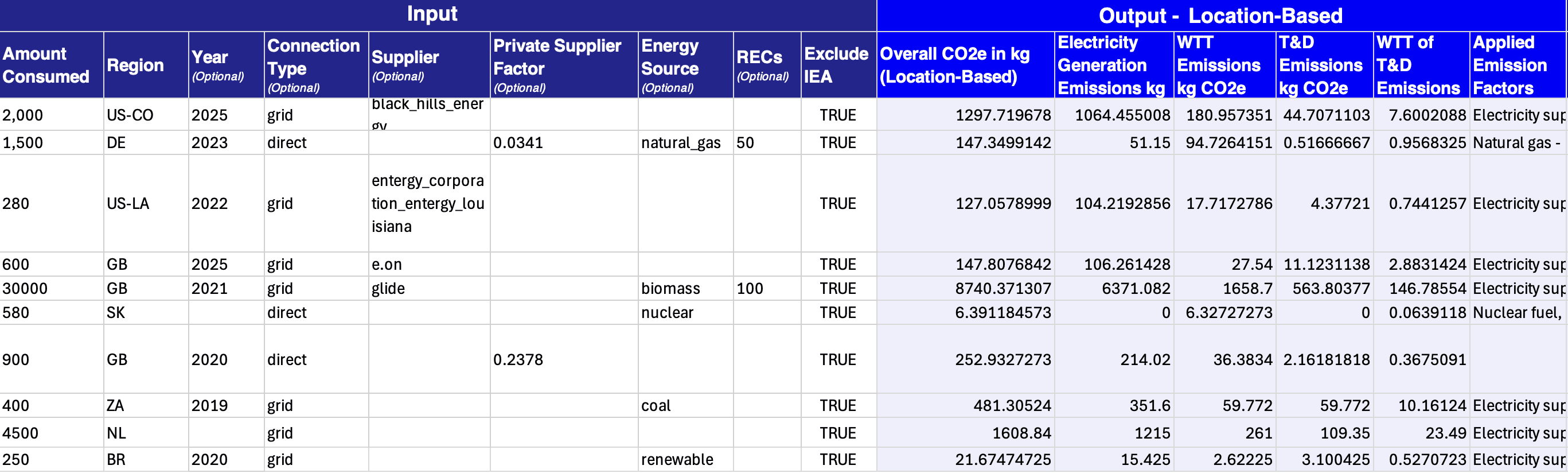
Estimate the emissions of electricity usage. The formula also provides details on the associated well-to-tank, transmission and distribution losses and their well-to-tank emissions.
Climatiq_Calculate_Electricity(amount; region; year; connectionType; supplier; supplier_ef; energy_source; recs; excludeIEA)
Parameters
| Name | Required | Type | Description |
|---|---|---|---|
amount | ✓ | Number | Amount of electricity consumed in kWh. |
region | ✓ | Text | The country or region in which the electricity has been consumed. Must be the 2-digit UN code. |
year | ✕ | Text | Year of the electricity consumption |
connection_type | ✕ | Text | Either the electricity was delivered via the “grid” or via a direct line. Default is grid. |
supplier | ✕ | Text | Available where the region is GB or a US state, a supplier ID can be provided to use market factors for that supplier. |
supplier_ef | ✕ | Number | Contracted emission factor for supplier, in kg CO2e/kWh. |
energy_source | ✕ | Text | The source that electricity is generated from. Valid values are renewable or specific fuel types such as natural_gas, coal, biomass and nuclear. |
recs | ✕ | Number | Quantity of RECs (Renewable Energy Certificates) in kWh to apply for market-based emission calculations. |
exclude_iea | ✕ | True/False | Indicates if emission factors from the IEA (a paid premium data source) should be excluded from the calculation. |
Examples
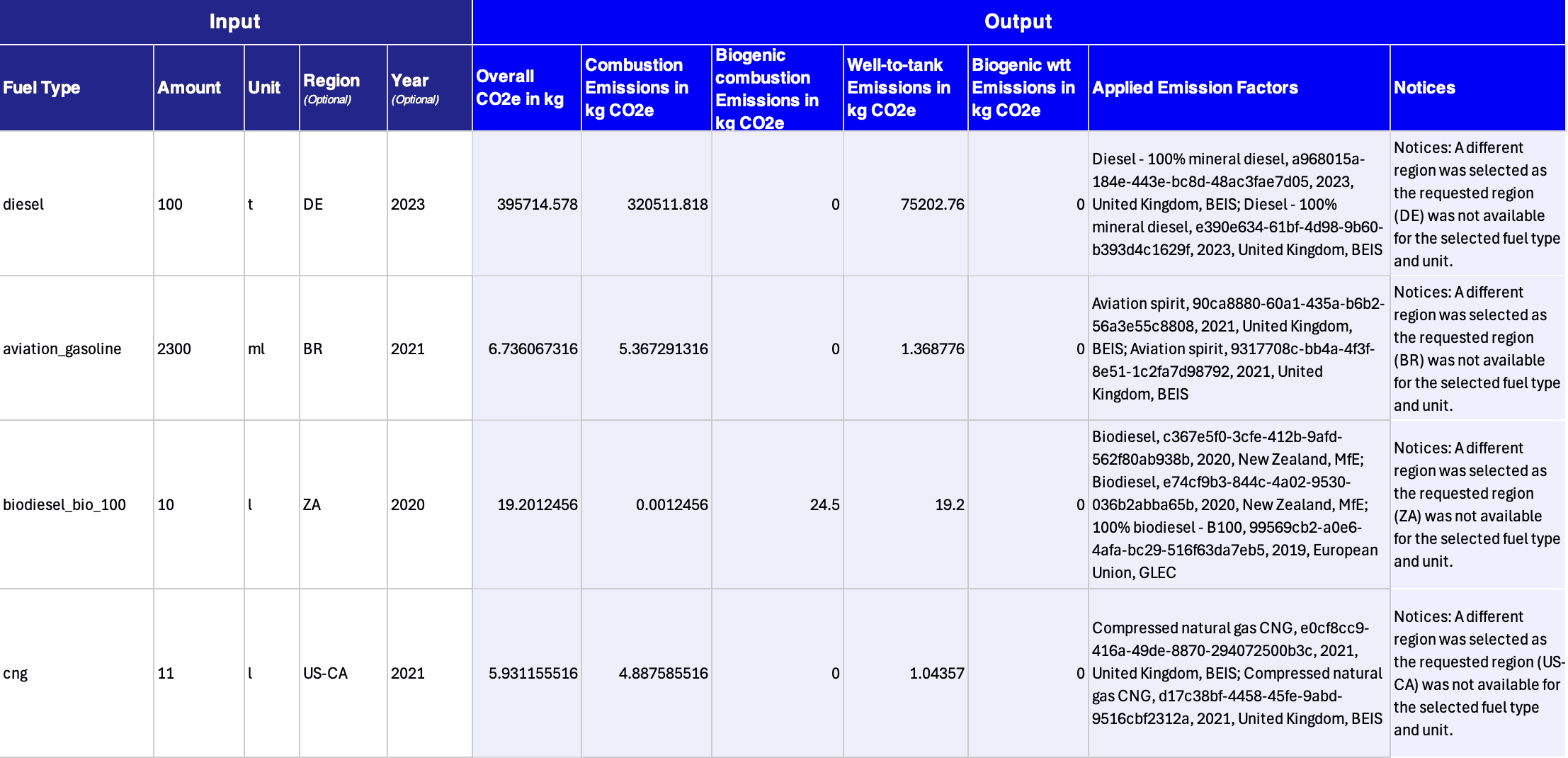
Fuel
Estimate the emissions of fuel combustion. The calculation also provides details on the associated scope 3, i.e. the well-to-tank emissions.
Climatiq_Calculate_Fuel(fuel_type; amount; unit; region; year)
Parameters
| Name | Required | Type | Description |
|---|---|---|---|
fuel_type | ✓ | Text | Type of fuel burned, e.g. biodiesel, cng, fuel_gas, etc. |
amount | ✓ | Number | Amount of fuel burned. |
unit | ✓ | Text | Unit of provided amount, e.g. l, kg, kWh or others |
region | ✕ | Text | The country in which the fuel have been purchased. Must be the 2-digit UN code. |
year | ✕ | Number | Year of the fuel consumption |
Examples
Heat & steam
Estimate the emissions of heat and steam usage for combustion and well-to-tank.
Climatiq_Calculate_Heat_Steam(amount; region; year; energy_source; loss_factor; supplier_co2e)
Parameters
| Name | Required | Type | Description |
|---|---|---|---|
amount | ✓ | Number | Amount of heat used in kWh. |
region | ✓ | Text | Region of usage. Must be the 2-digit UN code. |
year | ✕ | Number | Year of usage. |
energy_source | ✕ | Text | The source that electricity is generated from. Valid values are renewable or specific fuel types such as natural_gas, coal, biomass and nuclear. |
loss_factor | ✕ | Text | The distribution loss factor for this component. Can be either “low”, “medium” or “high”. |
supplier_co2e | ✕ | Number | Contracted emission factor for the component, in kg CO2e/kWh. |
Examples

Autopilot
Autopilot (also referred to as Mapping Agent) is an AI-powered calculation endpoint designed to automate spend- and activity-based emission estimates. It uses a proprietary natural language processing (NLP) model paired with Climatiq’s scientific expertise to streamline complex emission calculations, making carbon insights accessible to non-experts.
Autopilot significantly reduces the time and manual effort spent identifying the appropriate emission factors and mapping activity data. Capable of ingesting any taxonomy and unstructured data, this feature matches raw text content to the correct emission factors and delivers accurate and compliant emission estimates.
One-Shot Estimate
Calculate total estimated emissions produced for a particular activity, in kgCO2e, using free-text input. The best matching emission factor will automatically be selected and used for the calculation.
Climatiq_Autopilot(text; amount; unit; year; region; source; source_dataset; access_type; lca_stage; scope; region_fallback; inflation_adjustment)
Parameters
| Name | Required | Type | Description |
|---|---|---|---|
text | ✓ | Text | The free-form input text, such as an activity name, service or material name. |
amount | ✓ | Number | Amount for which the emissions shall be calculated. |
unit | ✓ | Text | Specific unit of the consumed amount, e.g. usd for Money, l for Volume or kg for Weight. |
year | ✕ | Number | Year in which the activity took place. |
region | ✕ | Text | A region code describing the geographic region to which the emission factor should apply. |
source | ✕ | Text | The source(s) to be searched in. If you search in multiple sources, split them with a comma, e.g. “BEIS,EPA,Ecoinvent”. |
source_dataset | ✕ | Text | The source dataset(s) to be searched in. If you search in multiple sets, split them with a comma. |
access_type | ✕ | Text | Filters by the access type of the emission factors. Accepted inputs are public, private and premium. |
lca_stage | ✕ | Text | Filters by a specific Lifecycle Activity Stage. Possible lca_stage options are outlined in the LCA Guide. |
scope | ✕ | Text | Filters by scope, such as 1, 2, 3.1,3.2, etc. Scope 3 categories can be explicitly stated (such as 3.1) or all Scope 3 categories can be selected by specifying 3. Multiple scopes can be split with a comma. Read more about scopes here. |
region_fallback | ✕ | True/False | Set this to true if you’re willing to accept a less specific geographical region than the one you’ve specified. |
inflation_adjustment | ✕ | True/False | Whether to apply inflation adjustments to the emission estimation, should Autopilot select an emission factor with a Money (spend-based) unit. |
Examples

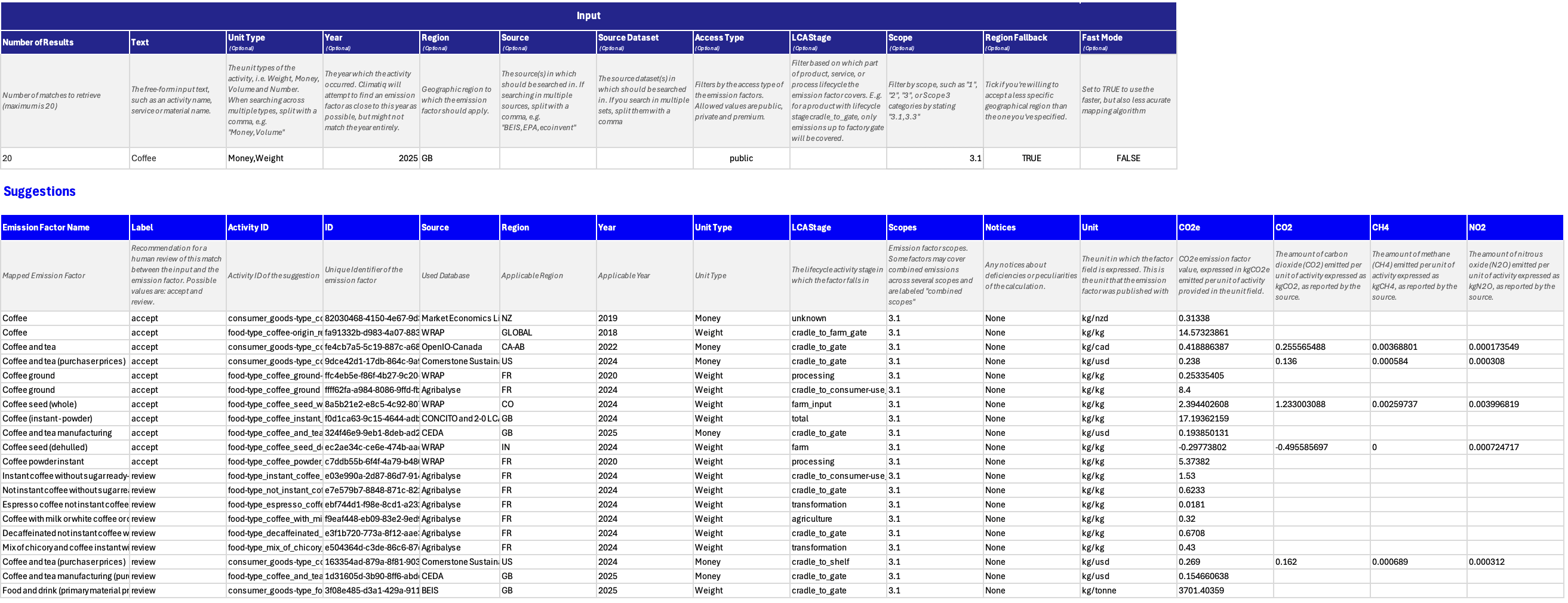
Suggest
Receive a number of suggested Emission Factors for a particular input query. You can adjust the number of suggestions to return. Suggestions are ordered by the most likely match first.
For each result, a suggestion ID is returned, which you can apply via the Autopilot_EstimateSuggest formula to calculate the respective emissions.
Climatiq_Autopilot_Suggest(results; text; unit_type; year; region; source; source_dataset; access_type; lca_stage; scope; region_fallback; flatten)
Parameters
| Name | Required | Type | Description |
|---|---|---|---|
results | ✓ | Number | The maximum number of suggestions to receive. Autopilot will return as many suitable suggestions as it can find, up to the max number requested, or at most 20 suggestions. |
text | ✓ | Text | The free-form input text, such as an activity name, service or material name. |
unit_type | ✕ | Text | The unit types of the activity, can be Weight, Money, Volume and Number. When searching across multiple types, split them with a comma, e.g. “Money,Volume” |
year | ✕ | Number | Year in which the activity took place. |
region | ✕ | Text | A region code describing the geographic region to which the emission factor should apply. |
source | ✕ | Text | The source(s) in which should be searched in. If you search in multiple sources, split them with a comma, e.g. “BEIS,EPA,Ecoinvent” |
source_dataset | ✕ | Text | The source dataset(s) to be searched in. If you search in multiple sets, split them with a comma. |
access_type | ✕ | Text | Filters by the access type of the emission factors. Accepted inputs are public, private and premium. |
lca_stage | ✕ | Text | Filters by a specific Lifecycle Activity Stage. Possible lca_stage options are outlined in the LCA Guide. |
scope | ✕ | Text | Filters by scope, such as 1, 2, 3.1,3.2, etc. Scope 3 categories can be explicitly stated (such as 3.1) or all Scope 3 categories can be selected by specifying 3. Multiple scopes can be split with a comma. Read more about scopes here. |
region_fallback | ✕ | True/False | Indicates if Autopilot should search in other regions, if no factor can be found for the given region. |
flatten | ✕ | True/False | Indicates if the calculation details of the matches should also be shared, i.e. estimated emissions and the details of the used emission factor (name, source, Climatiq UUID) |
Example - Not Flattened
Estimate Suggest
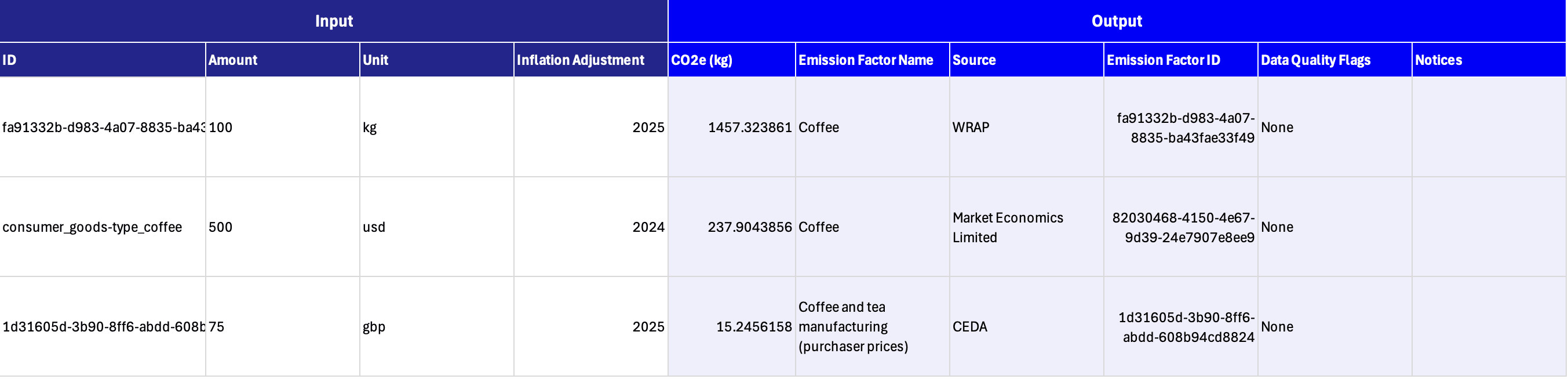
Calculate an emission estimation for an emission factor match. To calculate an emission estimation you will need to first find an emission factor using the Suggest endpoint. When you have selected an emission factor, you can request for a calculation using the suggestion ID.
Climatiq_Autopilot_EstimateSuggest(suggestID; unit; amount; spend_year)
Parameters
| Name | Required | Type | Description |
|---|---|---|---|
suggestion_id | ✓ | Text | An ID generated via the Suggest formula. |
unit | ✓ | Text | Specific unit of the consumed amount, e.g. usd for Money, l for Volume or kg for Weight. See the full list here. |
amount | ✓ | Number | Amount for which the emissions shall be calculated. |
spend_year | ✕ | Number | The year representing when the goods or the services were purchased - used for inflation adjustments. |
Examples
Procurement
By Industry Classification Code
Estimate the emissions for a purchase using an industry classification code to identify the type of purchased goods or service. This calculation accounts for tax, trade and transport margins using per-sector and per-country margins from EXIOBASE, if no user-supplied margins are provided. It also corrects for currency exchange rates and inflation adjustments, using rates from the UN Treasury, supplemented with per-industry inflation numbers from Eurostat. You can find details on the methodology here.
Climatiq_Calculate_Procurement_ByClassification(scheme; code; region; year; amount; currency)
Parameters
| Name | Required | Type | Description |
|---|---|---|---|
scheme | ✓ | Text | The classification scheme used. Valid values are: mcc, nace2, unspsc, isic4 and naics2017. |
code | ✓ | Number | Specific code of the classification. Please be aware that UNSPSC is only available up to a family level, i.e. the last four digits should be 0. Find more on classification codes here. |
region | ✓ | Text | The country in which the goods have been purchased, i.e. ideally the supplier country. Must be a 2-digit country code from ISO-3166-1 . |
year | ✓ | Number | Year of purchase |
amount | ✓ | Number | Spend amount |
currency | ✓ | Text | Currency of the spend. |
Examples

By Climatiq Activity ID
Estimate the emissions for a purchase using a Climatiq activity ID to identify the type of purchased goods or service. This calculation automatically accounts for tax, trade and transport margins using per-sector and per-country margins from EXIOBASE. It also corrects for currency exchange rates and inflation adjustments, using rates from the UN Treasury, supplemented with per-industry inflation numbers from Eurostat. You can find details on the methodology here.
Climatiq_Calculate_Procurement_ByActivityID(activity_id; region; year; amount; currency)
Parameters
| Name | Required | Type | Description |
|---|---|---|---|
activity_id | ✓ | Text | An ID describing the activity, specifically related to an EXIOBASE 3.8 factor. Multiple emission factors can share the same activity_id, e.g. if they are from a different source or apply to a different region. You can search for activity_ids in the Data Explorer or via the search formulas. |
region | ✓ | Text | The country in which the goods have been purchased, i.e. ideally the supplier country. Must be a 2-digit country code from ISO-3166-1 . |
year | ✓ | Number | Year of purchase |
amount | ✓ | Number | Spend amount |
currency | ✓ | Text | Currency of spend. |
Examples

Other
Search Emission Factors
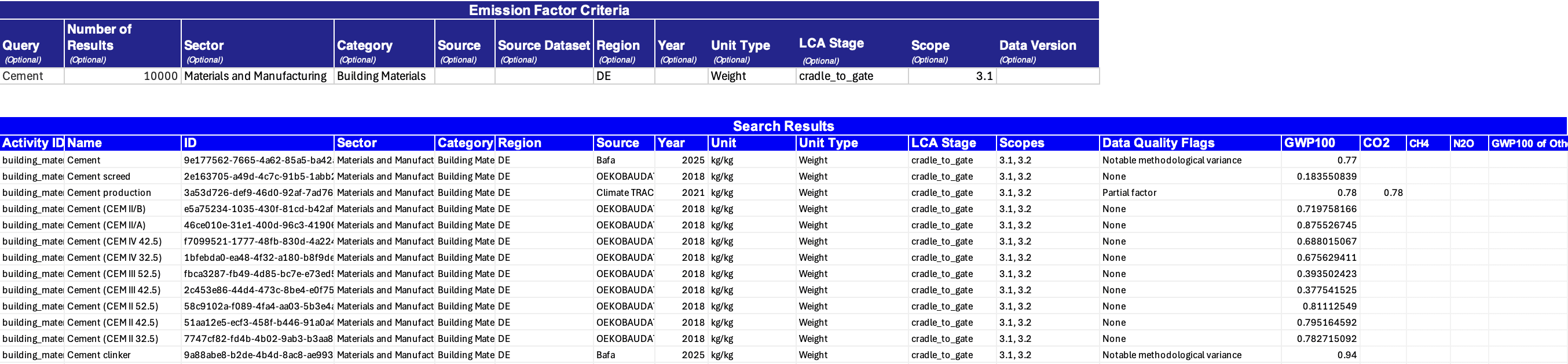
Search the emission factor database of Climatiq. Please be aware that this might only return a subset of results (depending on the number of results specified). The search works in the same way as our Data Explorer . The formula returns a table of results, so make sure the surrounding cells are empty when using this formula.
Depending on whether an existing Climatiq subscription to use the raw emission factors is in place, these will also be returned as part of the response. If you want to gain access to the raw emission factors, please reach out to our team .
Climatiq_Search_EmissionFactors(query; numberOfResults; sector; category; source; source_dataset; region; year; unit_type; lca_stage; scope; data_version)
Parameters
| Name | Required | Type | Description |
|---|---|---|---|
query | ✕ | Text | A free-text query that will match ids, names, descriptions, etc. of emission factors. This uses fuzzy matching, so your query does not need to be precise. |
number_of_results | ✓ | Number | The number of results to be shared. The maximum value is 10,000. |
sector | ✕ | Text | Filters by emission factor sector. Refer to the Data Explorer for a list of available options. |
category | ✕ | Text | Filters by emission factor category. Refer to the Data Explorer for a list of available options. |
source | ✕ | Text | Filters by emission factor source. Refer to the Data Explorer for a list of available options. |
source_dataset | ✕ | Text | The source dataset(s) to be searched in. If you search in multiple sets, split them with a comma. |
region | ✕ | Text | Filters by emission factor region. Refer to the Data Explorer for a list of available options. |
year | ✕ | Number | Filters by applicable year. |
unit_type | ✕ | Text | Filters by emission factor unit type, e.g. Money or Volume. Refer to the Data Explorer for a list of available options. |
lca_stage | ✕ | Text | Filters by Life Cycle Assessment stage, e.g. well-to-tank. Refer to the Data Explorer for a list of available options. |
scope | ✕ | Text | Filters by scope, such as 1, 2, 3.1,3.2, etc. Scope 3 categories can be explicitly stated (such as 3.1) or all Scope 3 categories can be selected by specifying 3. Multiple scopes can be split with a comma. Read more about scopes here. |
data_version | ✕ | Text | Filters for a specific version of the Climatiq database. i.e, 27. Read our Data Version Changelog to stay up to date with our current versions. |
Examples
General Estimate
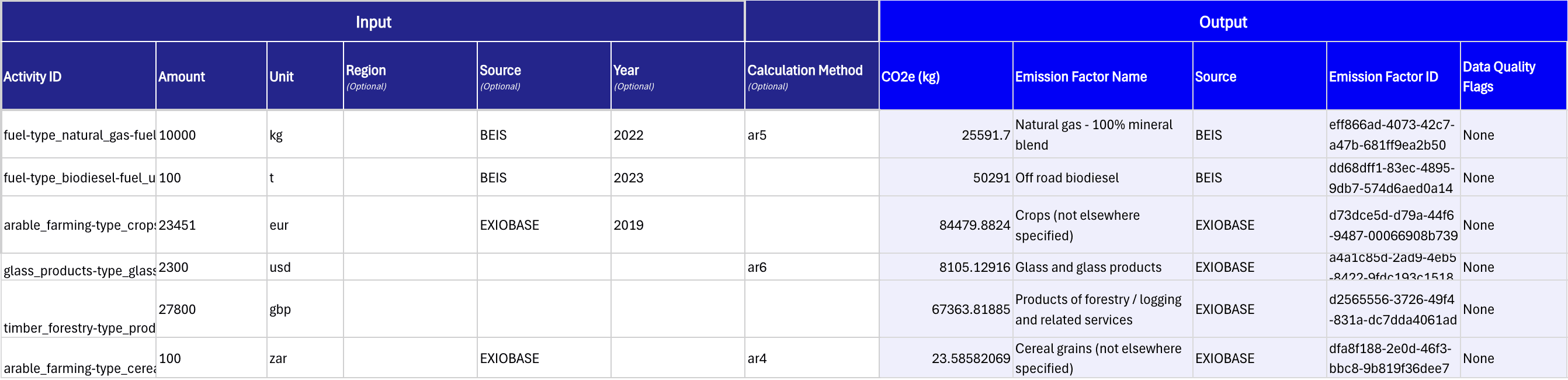
Calculate the total estimated emissions produced for a particular activity, in kgCO2e, using any emission factor in the Climatiq database.
Climatiq_Calculate(activityID; amount; unit; region; source; year; calculation_method)
Parameters
| Name | Required | Type | Description |
|---|---|---|---|
activity_id | ✓ | Text | An ID describing the activity that to search for. Multiple emission factors can share the same activity_id, e.g. if they are from a different source or apply to a different region. You can search for activity_ids in the Data Explorer or via the search formulas. |
amount | ✓ | Number | Amount for which the emissions shall be calculated. |
unit | ✓ | Text | Specific unit of the consumed amount, e.g. usd for Money, l for Volume or kg for Weight. See the full list here. |
region | ✕ | Text | A region code describing the geographic region to which the emission factor applies. |
source | ✕ | Text | Desired emission factor source. |
year | ✕ | Number | Year in which the activity took place. |
calculation_method | ✕ | Text | The calculation method that will be used to calculate the CO2e emission factor. Valid inputs are ar4, ar5 or ar6. |
Examples
Audit Trails
Search by ID
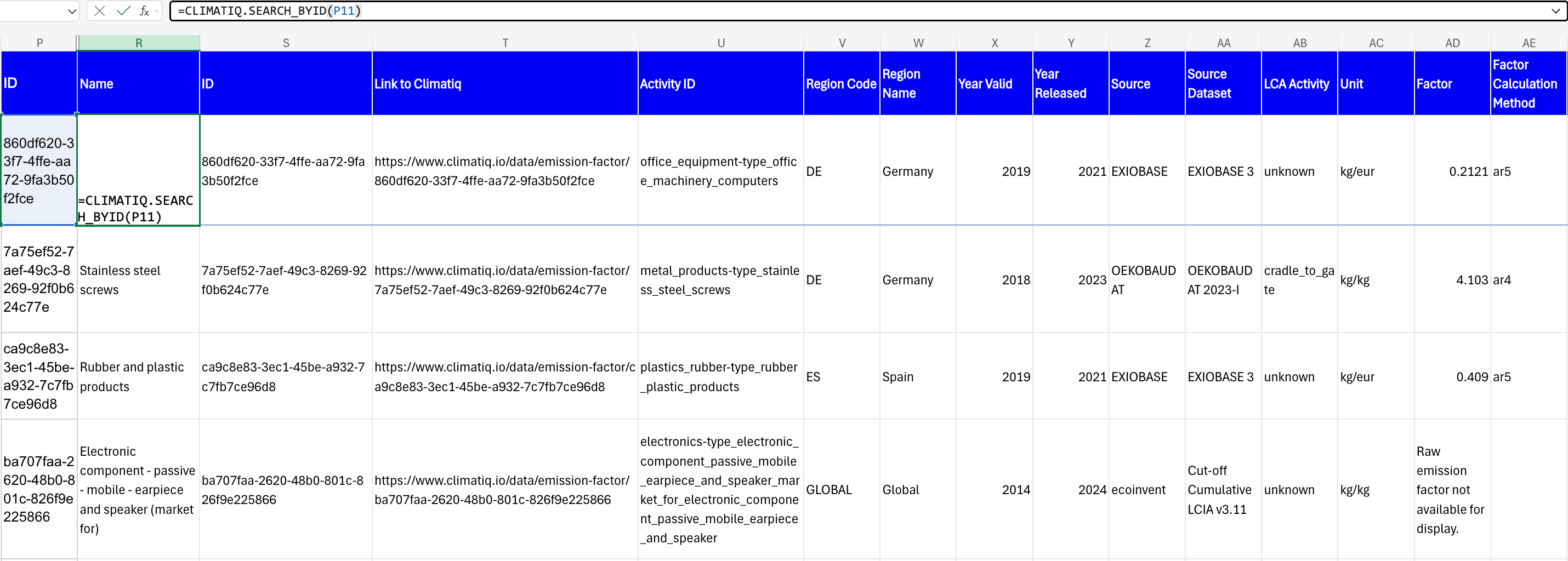
For further auditing, you can use the Search by ID formula to retrieve detailed information about a specific emission factor used in Climatiq calculations.
Climatiq_Search_ByID(ID)
Parameters
| Name | Required | Type | Description |
|---|---|---|---|
id | ✓ | Text | A unique ID which points to one particular emission factor. |
The formula requires the ID, not the activity_id. For example, the emission factor for Office machinery and computers has:
activity_id: office_equipment-type_office_machinery_computersID: 1afd8f9f-6cd9-485d-9801-4d5f3e5286b2
By entering the emission factor’s ID into the formula, you’ll receive additional details including:
- The raw factor value, if you have access to it
- Year released
- LCA activity stage
- Calculation method
- Constituent gases (where applicable)
- Source dataset
- URL to the specified emission factor in our Data Explorer
This provides auditors and reviewers with a straightforward link to our vetted emission factor database for transparent verification.
To label the output data with column headers, insert the Climatiq_Search_ById_Headers() formula within Google Sheets.
Examples
Retrieve Factor Details
For further auditing, you can apply the Retrieve Factor Details formula to retrieve detailed factor information for multiple emission factors used in Climatiq calculations. If the original Climatiq calculation returned an “Applied Emission Factors” column with multiple factors, use the Retrieve Factor Details audit formula instead of the Search by ID formula.
Climatiq_Retrieve_FactorDetails(factors; flattened)
Parameters
| Name | Required | Type | Description |
|---|---|---|---|
factors | ✓ | Text | A reference to the cell which hold the emission factor details, titled as “Applied Emission Factors”. |
flatten | ✕ | True/False | Whether the results should be returned in a matrix table or a flattened series of cells. |

Frequently Asked Questions
General
Which Google Sheets versions support the use of the Extension?
The Extension is available for Google Sheets on all platforms where Google Sheets is supported, including web browsers, mobile apps, and desktop applications. Installing it once for your Google account will make the Extension available across all platforms.
Is the Climatiq Google Sheets Extension free to use?
If you are signed up to our Community Plan, our Google Sheets Extension is free for non-commercial use, supporting up to 250 calculations per month. If you require higher calculation volumes or commercial use, please contact our sales team to discuss your needs or watch a demo recording .
How do I use the Climatiq formulas to calculate emissions?
Access to all our formulas start with =CLIMATIQ. When typing this into a cell in sheets, a variety of different formulas will appear. These formulas can be applied in your existing Google Sheets workbooks of business data.
What emission factors are available in the Google Sheets Extension?
By default, you can access emission factors from all sources except for ecoinvent, IEA, EXIOBASE v3.10 and Sustamize data. These premium sources require an additional subscription to be in place and are available via the estimation and Autopilot formulas with a valid subscription with Climatiq in place.
Can we manage or revoke keys centrally?
Yes, you can manage your keys via the Climatiq dashboard and create new keys for any occasion. We also recommend to make use of Climatiq’s project management. This allows you to create a new project in your Climatiq dashboard for each new engagement. Each key belongs to a project - this allows you to create separate keys for different use cases or scenarios - and a project can hold several keys. You can track the number of calculations made per project in the Climatiq Dashboard, and enable or disable keys associated to this project as needed.
How does performance scale if we have thousands (or tens of thousands) of rows?
The Extension can handle up to 100 complex calculations being performed in parallel e.g. for shipment, travel, or Autopilot requests. Making parallel requests exceeding this volume within a short time frame may result in errors in Google Sheets. We therefore recommend to perform calculations in batches, i.e. insert the formula into 100 cells, wait a few seconds for the calculations to be completed and continue with the next set of 100 calculations. If you are aiming to perform calculations for tens of thousands of data points at once on a large scale, we recommend reaching out to our team to explore data processing options directly.
How can I get a direct link to the emission factors used in my calculations?
In a new Google Sheets cell, enter this formula to create a clickable link:
="https://www.climatiq.io/data/emission-factor/" & [ID_CELL]Replace [ID_CELL] with the cell reference containing the emission factor ID from your results. Alternatively, our Search by ID and Retrieve Factor Details audit trail formulas also provide these URLs automatically.
Can I use combined units when making carbon estimates (e.g. tonne-kilometers)?
Yes. For emission factors that use a combined unit such as weight-over-distance, concatenate the weight and distance units as a single string (e.g. t_km, kg_km, mile_lb) and provide weight × distance as the amount. For example, 2 tonnes transported over 10 km would be entered as amount 20 with unit t_km.
Troubleshooting
Why am I getting an “Invalid key” or “Climatiq key not set” error in fields?
Your key may not be set, was set incorrectly or Google Sheets is not recalculating the formula. To fix this issue, ensure the Climatiq Extension is installed and that your key is set via Extensions > Start Extension > Support > Set key field. After setting the key, you can re-calculate the fields in which this error is shown.
Why am I getting a “#NAME!” error in my formulas?
This error is shown by Google Sheets if it is trying to resolve the name of a formula or variable, but it not able to do so, because the name is unknown to Google Sheets. One common cause are missing quotation marks ("") around alphabetical inputs. To fix this, make sure to wrap any text values, like city names, unit types, transportation modes and others in quotation marks (e.g., use “Berlin” instead of Berlin).
Another cause for this that Google Sheets is not able to install the Extension properly and is therefore unable to resolve the Climatiq formulas. In this case there should also be an error message shown. You can try to reinstall the Extension if custom formulas are not recognized. You can reinstall the Extension by first navigating to Extensions > Manage Extensions and uninstalling it, then reinstalling from the Google Workspace Marketplace . If these fixes do not work, your company policies might block external Extensions from loading.
What does the “You do not have access to this feature” message mean?
You have already exceeded your monthly limit of 250 free calculations, or you are trying to access a calculation feature that is not part of your current subscription plan with Climatiq. Get in touch with our sales team to start a free trial based on your needs, or to learn more about our paid plans to upgrade for more access.
How do I share a Google Sheet with Climatiq formulas?
If the recipient does not have the Climatiq Extension installed, the Climatiq formulas will not be properly calculated in their Google Sheets environment. Therefore, make sure to replace any cells using Climatiq formulas with the calculated values by copying the formula results and pasting them as values (Copy > Paste Special > Values only).
Why are my formulas showing “#ERROR!” or “#REF!” messages?
These errors typically indicate:
- Missing or incorrect input parameters (check quotation marks around text)
- Invalid location names or codes
- Network connectivity issues
- Exceeded monthly calculation limits
Security
How are updates to the Extension being handled?
Whenever an update to the Extension is being published, Google Sheets will automatically install the latest version for you. Google Sheets does currently not support an opt-out for new versions of Extensions. To stay up-to-date with new releases and improvements of the Extension, you can check out our Changelog and subscribe to our monthly Release Notes .
Does Climatiq have specific certifications (ISO, SOC 2, GDPR) that cover data processed via the Google Sheets Extension?
Climatiq’s compliance with ISO 27001, SOC2 and GDPR is externally certified - you can find further details in our Trust Center .